
How to Sync Inventory Across Multiple Shopify Stores
 Brian @brian
·
·
10 min read
5 views
Brian @brian
·
·
10 min read
5 views
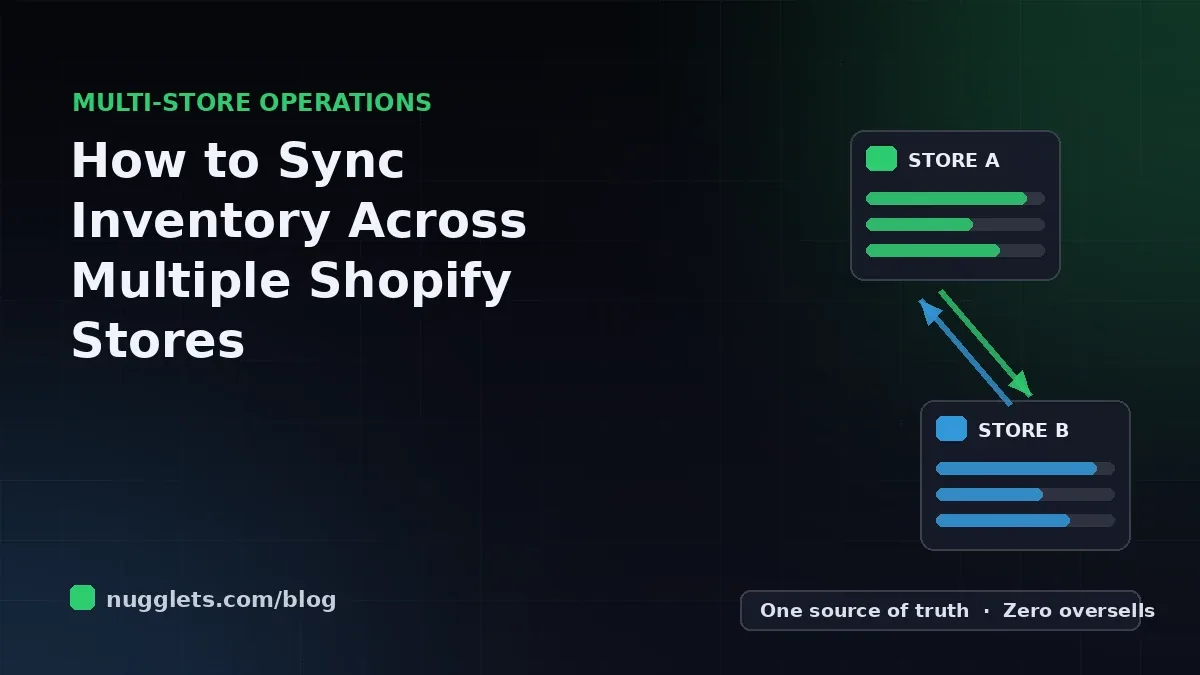
If you run more than one Shopify store, inventory is usually the first thing that breaks. Orders come in on store A, stock levels only update on store B hours later, and suddenly you have sold a product you no longer have. Managing multiple Shopify stores is very doable, but only when every storefront agrees on how many units you actually own. That agreement is what inventory sync is about.
This guide walks through a practical, step-by-step process for syncing inventory across multiple Shopify stores: how Shopify actually handles stock behind the scenes, how to choose a single source of truth, which sync methods fit which store sizes, and the rules that prevent overselling when two stores share one warehouse shelf.
It is written for operators who already run two or more stores, or who are about to launch a second one and want to avoid the most common multi-store mistakes from day one.
Why Inventory Sync Is the Hardest Part of Managing Multiple Shopify Stores
Most of the pain in managing multiple Shopify stores comes from duplication. Two stores means two product catalogs, two sets of orders, two admin dashboards, and two databases that each believe they know your stock levels. Shopify does not natively share inventory between separate stores, so nothing reconciles those two views of the truth unless you build or install something that does.
The consequences show up fast. Overselling leads to refunds, apology emails, and cancelled orders that damage your store's reputation and your ad account's conversion data. Underselling is quieter but just as expensive: a product shows out of stock on one storefront while units sit unsold in the warehouse because the other store is hoarding the count.
Both problems get worse as you scale. At ten orders a day you can fix mismatches by hand. At a hundred orders a day across three stores, manual reconciliation becomes a full-time job that still misses things. That is why a deliberate sync setup matters more than any individual app choice.
How Shopify Handles Inventory (And Where It Falls Short)
Before choosing a sync method, it helps to understand what Shopify gives you natively, because two built-in features are often confused with true multi-store sync.
Locations are not stores
Every Shopify store supports multiple locations: warehouses, retail spaces, or third-party fulfilment centers that each hold their own stock counts. Locations are great for routing orders to the nearest warehouse, but they only exist inside one store. According to the Shopify Help Center, inventory at a location is tracked per store, so a second store cannot see or deduct from the first store's locations. If your two stores sell the same physical units, locations alone will not keep them in agreement.
Shopify Markets solves geography, not multi-brand
Shopify Markets lets a single store sell in multiple countries, currencies, and languages from one shared inventory pool. If your only reason for running two stores is regional pricing or translated storefronts, consolidating into one store with Markets removes the sync problem entirely. But Markets does not help when you run genuinely different brands, different catalogs, wholesale versus retail pricing, or stores owned by different legal entities. Those cases still require separate stores, and separate stores require sync.
Step 1: Map Your Catalog Before You Sync Anything
Sync tools match products between stores using SKUs. If your SKUs are inconsistent, every tool downstream will fail in confusing ways, so start with a catalog audit.
Export the product list from each store and answer three questions for every shared product. First, does the same physical item carry the same SKU everywhere? A hoodie listed as HD-BLK-M in one store and HOODIE-BLACK-MED in another will be treated as two unrelated products. Second, are there duplicate SKUs pointing at different items? That is worse than a mismatch, because a sync tool will happily equalize stock between two products that have nothing to do with each other. Third, which products are intentionally exclusive to one store? Mark them now so you can exclude them from sync rules later.
Fix the naming before you connect anything. A simple convention works: a stable product code, a variant attribute, and a size, all uppercase, separated by hyphens. Resist the urge to encode supplier names or years into SKUs; that information changes, and SKUs should not.
This is also the right moment to decide which store is the catalog master, meaning where product titles, descriptions, images, and prices get edited. Sync tools can usually push catalog edits one way. Editing product data in both stores independently is how descriptions drift apart and pricing errors slip through.
Step 2: Choose One Source of Truth for Stock
Every reliable multi-store setup has a single system that owns the real inventory number. Every other system, including each Shopify store, is a subscriber that reads from it. The moment two systems both believe they own the count, you are back to guessing.
The right source of truth depends on how your operation is built. If you hold your own stock, the warehouse management system or the spreadsheet-replacement tool you count stock in should own the number. If a 3PL fulfils your orders, their system usually knows the truth before you do, and your sync should flow outward from it. If you dropship, your suppliers own the physical truth, and your source of truth is effectively the feed you pull from them; the goal becomes updating every storefront from that feed at the same time rather than one store at a time.
Centralizing has a second benefit beyond stock accuracy: reporting. When one system sees inventory, orders, and costs across every store, you can finally answer questions like which store actually generates profit rather than just revenue. That is the same principle behind running a consolidated ecommerce business dashboard, and it is the difference between managing multiple Shopify stores and merely owning them.
Step 3: Pick the Sync Method That Fits Your Size
There are three broad ways to keep stores in agreement, and the right one is mostly a function of order volume and team size.
Manual updates (fine below ~10 orders a day)
At very low volume, a disciplined manual routine works: one master spreadsheet, stock adjusted after each day's orders, and both stores updated together at a fixed time. The keys are doing it on a schedule rather than when you remember, and keeping safety buffers generous. Manual sync fails not because spreadsheets are bad but because humans skip days.
Inventory sync apps (the sweet spot for most multi-store sellers)
Dedicated Shopify sync apps connect two or more stores and propagate stock changes between them automatically, usually within seconds via webhooks. When evaluating one, check four things: sync speed under load, not just in a demo; SKU-level control so you can exclude store-exclusive products; conflict handling, meaning what happens when both stores sell the last unit within the same minute; and an activity log you can audit when a number looks wrong. Expect to pay based on SKU count or store count. This tier fits most sellers doing tens to hundreds of orders a day.
ERP or middleware (for high volume and multiple channels)
Once you add Amazon, retail, or B2B channels alongside several Shopify stores, point-to-point app connections become spaghetti. An ERP, inventory management platform, or custom middleware puts one hub in the middle: every channel reports sales to the hub, and the hub pushes updated availability everywhere. It is more setup and more monthly cost, but the hub-and-spoke model is the only architecture that stays predictable past a certain complexity.
Step 4: Set Sync Rules That Prevent Overselling
Connecting the pipes is not enough; the rules flowing through them decide whether you oversell. Four rules cover most failure modes.
- Keep a safety buffer on shared stock. If two stores sell from the same shelf, never expose the full quantity to both. Publishing 95% of true stock, or true stock minus a fixed floor of two or three units, absorbs the race condition where both stores sell the last unit simultaneously.
- Sync on order creation, not fulfilment. Stock should be deducted everywhere the moment an order is placed. Waiting until fulfilment leaves a window of hours during which the other store is selling phantom units.
- Handle refunds and cancellations explicitly. A cancelled order should restock in the source of truth and flow outward from there. Check how your tool treats partial refunds and exchanges; this is where mystery stock drift usually comes from.
- Decide the out-of-stock behavior per store. When a product hits zero, one brand might show a back-in-stock signup while another hides the product entirely. Configure this deliberately for each storefront rather than accepting defaults.
Write these rules down somewhere the whole team can see. When a stock number looks wrong at 9pm, the difference between a five-minute fix and an hour of panic is knowing what the system is supposed to do.
Step 5: Monitor Sync Health Daily
Sync systems fail quietly. An expired API token, an app update, or a renamed SKU can silently stop updates for one product or one store while everything else looks normal. Treat sync health as a daily operational check, the same way you review orders and ad spend.
A practical routine takes five minutes. Spot-check three to five fast-moving SKUs across every store and the source of truth; the numbers should match within your buffer. Review the sync tool's error log for failed updates or unmatched SKUs. Watch for symptoms in your orders: a cluster of oversells on one store almost always means its connection, not your warehouse, is the problem. If you already do a morning numbers review, as covered in our guide to managing multiple Shopify stores without chaos, fold the inventory check into it rather than treating it as a separate chore.
Common Multi-Store Inventory Mistakes to Avoid
- Syncing before cleaning SKUs. Every mismatch you ignore during setup becomes a recurring error you chase forever.
- Letting both stores edit product data. Pick one catalog master; sync everything else one way.
- Exposing 100% of shared stock to every store. The last unit will eventually sell twice in the same minute.
- Ignoring refunds in the sync design. Restocks that only happen in one system are the top source of slow inventory drift.
- Skipping the audit log. If you cannot see what the sync tool did, you cannot debug what it did wrong.
- Forgetting profit. Accurate stock is only half the picture; if you cannot see margin per store, you may be perfectly syncing your way to a loss, a problem we cover in managing multiple Shopify stores without losing profit.
Frequently Asked Questions
Can Shopify sync inventory between two stores natively?
No. Each Shopify store keeps its own product catalog and inventory database. Locations share stock within one store only, so syncing between separate stores requires an app, middleware, or a shared external source of truth.
How often should inventory sync run?
As close to real time as your tools allow. Webhook-based apps update within seconds; anything on a schedule should run at least every 15 minutes, because the gap between syncs is exactly the window in which you can oversell.
Should I just merge my stores instead?
If your stores exist only for different regions or currencies, one store with Shopify Markets is usually simpler and removes the sync problem. Separate brands, catalogs, or wholesale channels are the cases that justify keeping stores separate and investing in sync.
Final Thoughts: Sync Is a System, Not an App
Syncing inventory across multiple Shopify stores comes down to five moves: clean your SKUs, appoint one source of truth, choose a sync method that matches your volume, set explicit rules for buffers, refunds, and zero-stock behavior, and check the system's health every day. The specific app matters far less than the discipline of the setup around it.
Get the inventory layer right and the rest of multi-store operations, from order review to per-store profit, becomes dramatically easier to run from one place instead of a dozen tabs.
Run your whole store from one dashboard
Track orders, suppliers, inventory and real profit with Nugglets.
See NuggletsKeep reading
Managing Multiple Shopify Stores as a Small Team
Should You Open a Second Shopify Store? How to Decide


Comments 0