
Managing Multiple Shopify Stores Without Chaos
 Brian @brian
·
·
8 min read
4 views
Brian @brian
·
·
8 min read
4 views
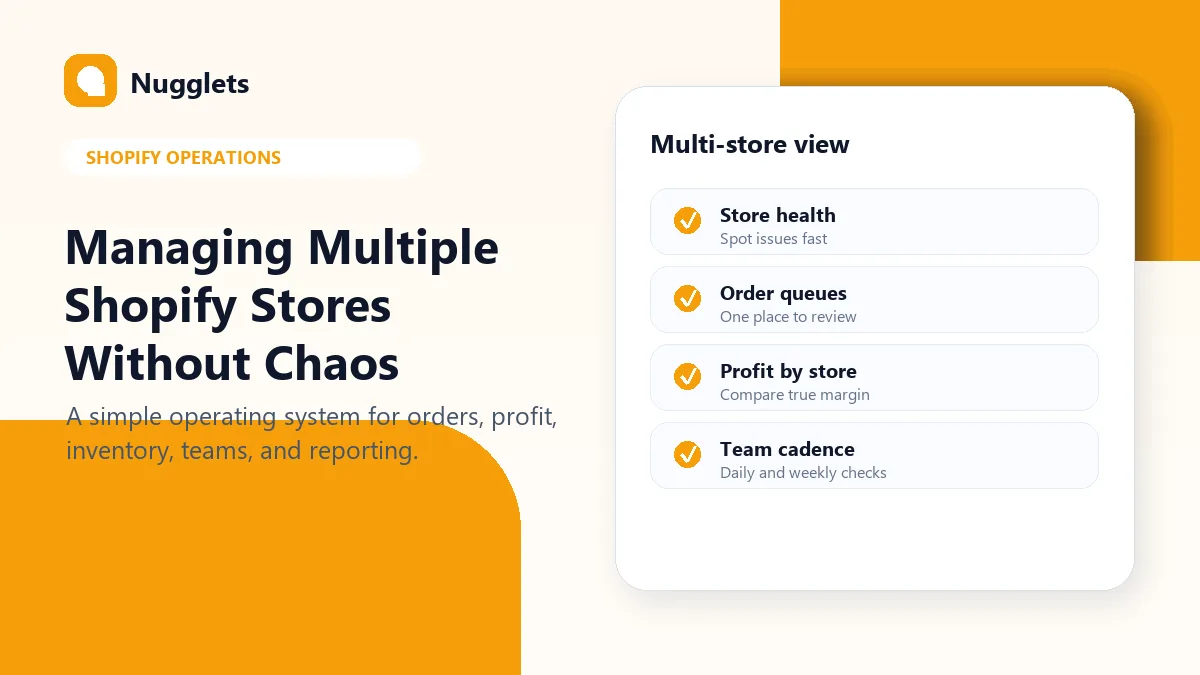
Managing multiple Shopify stores is exciting until the daily work turns into tab switching, uneven reporting, missed orders, and unclear profit. The problem is rarely that owners cannot open each store. The problem is that every store starts to use a slightly different operating rhythm. One store gets reviewed daily, another gets reviewed when something breaks, and a third quietly drifts because the numbers are harder to find.
This guide gives you a practical system for keeping multiple Shopify stores organized without hiding the details that make each store different. The goal is not to merge every store into one vague total. The goal is to make each store comparable, visible, and easier to operate.
Managing multiple Shopify stores: quick operating system
Use one repeatable workflow for every store: check store health, review orders, compare profit, inspect inventory or supplier issues, and record the next action. The more stores you run, the more important consistency becomes. Without a shared process, the owner spends too much time switching context and too little time making decisions.
| Area | What to review | Why it matters |
|---|---|---|
| Store health | Sync status, checkout issues, fulfillment delays. | Shows which store needs attention first. |
| Orders | New, delayed, refunded, and fulfilled orders. | Keeps customer experience clean. |
| Profit | Net profit by store, product, and order. | Prevents one store from hiding another store's losses. |
| Reporting | Revenue, margin, refunds, and ad spend. | Makes decisions comparable across stores. |
| Team actions | Owner, due date, and next step. | Stops repeated checking without action. |
Use Shopify's built-in switching, but do not stop there
Shopify's store switcher can help you move between stores connected to the same login. For some Shopify Plus organizations, organization features can also support multi-store management and reporting. Those tools are useful, but operators still need a practical layer for day-to-day comparisons.
If one store uses a different report, another uses a spreadsheet, and a third lives in someone's memory, the business becomes hard to manage. The point is to make each store visible in the same language. Store switching helps you access the stores. A multi-store operating system helps you understand them.
Create one scorecard per store
A simple store scorecard should answer five questions in under a minute. Did the store sell yesterday? Was the store profitable after key costs? Are there orders that need attention? Are refunds or fulfillment issues increasing? What is the single next action for this store?
- Daily sales and order count
- Net profit after product cost, fees, shipping, ads, and refunds
- Orders waiting on fulfillment or tracking
- Products with low or negative margin
- Refunds, chargebacks, or customer service spikes
- Store sync or app connection issues
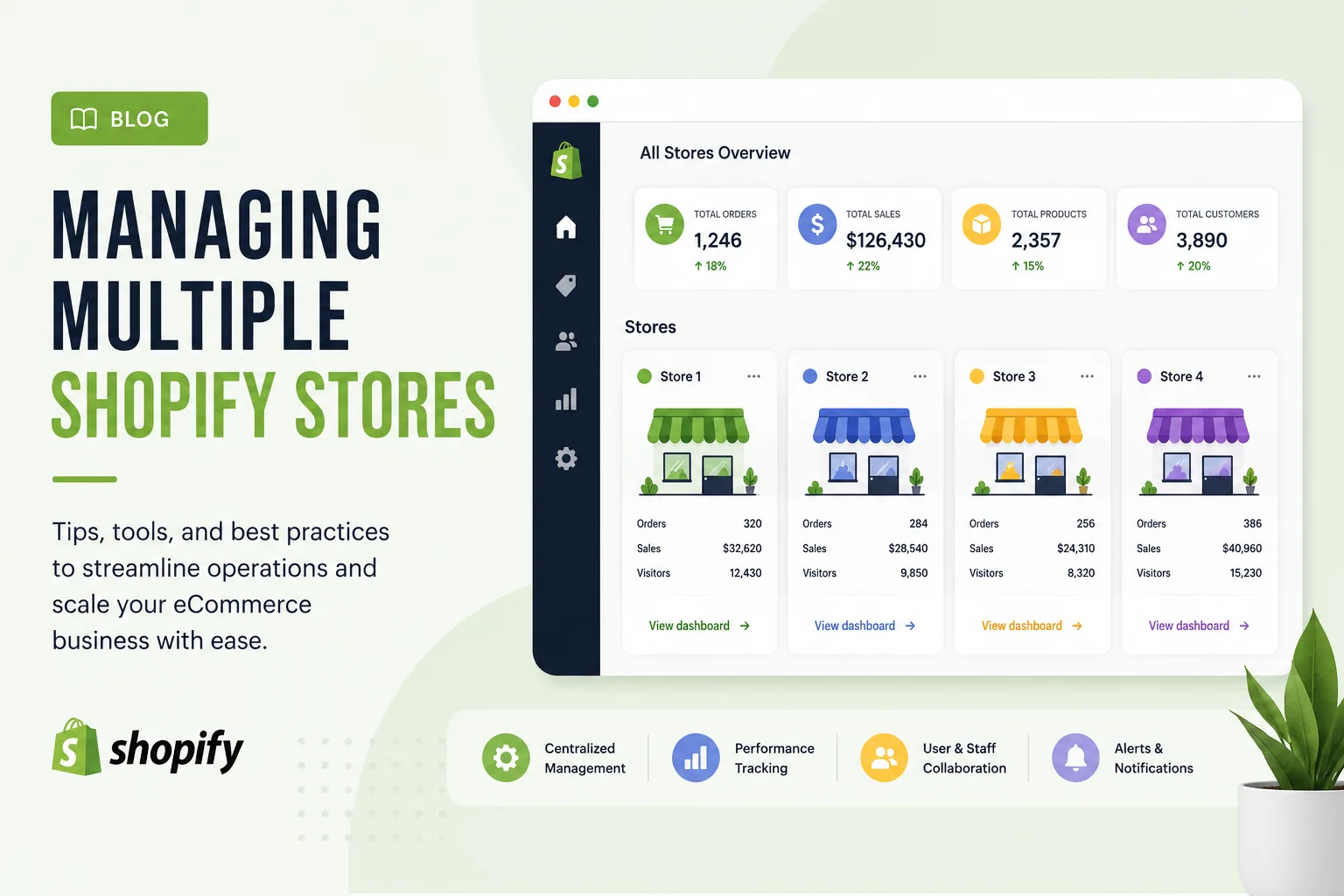
Nugglets' multi-store dashboard is designed for this view. Each store keeps its own orders, profit, and health signals, so the owner can compare stores without merging everything into one vague total.
Keep orders in one review rhythm
When you run multiple Shopify stores, order review can become fragmented. One store might have delayed fulfillment, another might have refund pressure, and another might be fine. A single order management workflow helps you catch the store that needs attention first.
Review new orders daily. Flag orders waiting on suppliers, orders missing tracking, orders with customer messages, and orders with unusual profit. If your store uses dropshipping or external fulfillment, connect each order to the supplier cost and fulfillment status so profit stays accurate. The more stores you operate, the more valuable a shared order queue becomes.
Compare real profit, not just revenue
Revenue is useful, but it can mislead multi-store operators. A store with lower revenue might have stronger profit. A store with high sales might be eating margin through shipping, discounts, refunds, or ad spend. If you compare stores only by top-line sales, you may send energy and budget to the wrong place.
Use a Shopify profit tracker to compare true profit after product cost, shipping, transaction fees, ad spend, and refunds. Then use a sales tracker to see whether the store's sales trend matches its profit trend. Healthy stores usually show both demand and margin discipline.
Standardize naming, tags, and reporting
Multi-store reporting gets messy when every store names products, suppliers, and campaigns differently. Build a naming convention early. Product names, supplier labels, store names, and campaign names should be easy to compare. If one store uses abbreviations and another uses full names, reporting takes longer than it should.
For example, use consistent tags for product category, supplier, country, season, or test status. That makes it easier to compare stores by category or supplier. It also helps when you want to understand whether a margin problem belongs to one store or to the product type itself.
Assign ownership before issues appear
Even if one person owns the whole business, every recurring task needs an owner. Who checks delayed orders? Who updates product costs? Who reviews refunds? Who pauses a weak product? Who checks store health after an outage? If the answer is always “someone,” the real answer is usually no one.
Use a simple owner, due date, and next action format. The owner does not need to be a full team member. It can be you. The point is to turn store review into decisions. A multi-store dashboard should not become a place where issues are observed repeatedly without action.
Prepare for Shopify admin or login disruptions
When you manage several stores, a Shopify admin issue can create more confusion because every store owner wants to know whether the problem is local, account-based, or platform-wide. Keep a response checklist ready. Check status, test checkout, communicate with the team, and document which stores are affected.
If you need a detailed response workflow, use the Shopify admin outage checklist. It pairs well with a multi-store operations setup because store health and order queues are the first things to review when access returns.
Set a weekly multi-store cadence
A weekly review keeps stores from drifting. Start with the store that has the weakest health signal, not the store you like checking most. Then compare store-level profit, top products, refund issues, ad spend, and orders waiting on action. The cadence should be predictable enough that problems do not wait for a crisis.
- Monday: review weekend orders and fulfillment delays.
- Tuesday: update supplier or product cost changes.
- Wednesday: compare profit, ad spend, and refund issues.
- Thursday: review product tests and weak margin items.
- Friday: decide which products or stores get attention next week.
This rhythm turns managing multiple Shopify stores from a constant context switch into a repeatable operating system. You still need judgment, but you no longer need to start from scratch every morning.
Common multi-store mistakes
- Reviewing the busiest store first instead of the riskiest store.
- Combining profit too early and hiding store-level problems.
- Letting each store use different product cost assumptions.
- Tracking revenue in one tool and refunds somewhere else.
- Forgetting to review supplier or fulfillment delays by store.
- Using different naming conventions for similar products.
- Waiting until the end of the month to check weak margins.
These mistakes are normal as a business grows. The fix is not perfection. The fix is a clearer system that makes store-level problems visible while they are still small.
Build store-level alerts and thresholds
Once you manage more than one Shopify store, alerts should be tied to thresholds, not feelings. Decide what counts as a problem before the week begins. For example, you might flag any store with falling net profit, orders waiting on fulfillment for more than a day, a sudden refund increase, a product cost change, or a sync issue that blocks reporting.
Thresholds make your review calmer because you are not guessing which store deserves attention. You can scan the same signals every day and act only when a store crosses a line. That is especially useful when you run stores in different niches, countries, or fulfillment models. The businesses may look different, but the operating questions stay consistent.
Keep a decision log for each store
A decision log is a simple record of what changed and why. Note when you pause a product, change a supplier, raise a price, test a new ad angle, or fix a fulfillment issue. Without a log, multi-store operators often repeat old tests because they forget why a decision was made.
The log does not need to be long. Store, date, issue, action, owner, and result are enough. Over time, this gives you a clearer operating memory. You can see which store improves after process changes and which store keeps returning to the same problem.
FAQ
Can one person manage multiple Shopify stores?
Yes, but the work needs a simple operating rhythm. Without shared reporting and order review, the stores become harder to compare and easier to neglect.
What is the hardest part of managing multiple Shopify stores?
The hard part is usually not logging in. It is keeping order status, profit, refunds, suppliers, and reporting consistent across stores.
Do I need a multi-store dashboard?
If you check the same metrics in more than one store every week, a multi-store dashboard can save time and reduce blind spots. It is especially useful when you need profit by store, not just revenue.
How often should each store be reviewed?
Review orders daily, profit weekly, and store-level decisions at least once per week. Fast-moving stores may need daily profit checks during product tests or campaigns.
Next step
Managing multiple Shopify stores gets easier when each store has a clear scorecard. Use Nugglets to see store health, orders, sales, and true profit side by side.
Run your whole store from one dashboard
Track orders, suppliers, inventory and real profit with Nugglets.
See NuggletsKeep reading


Comments 0