
Shopify Admin Outage or Login Down? What Store Owners Should Do
 Brian @brian
·
·
10 min read
1 views
Brian @brian
·
·
10 min read
1 views
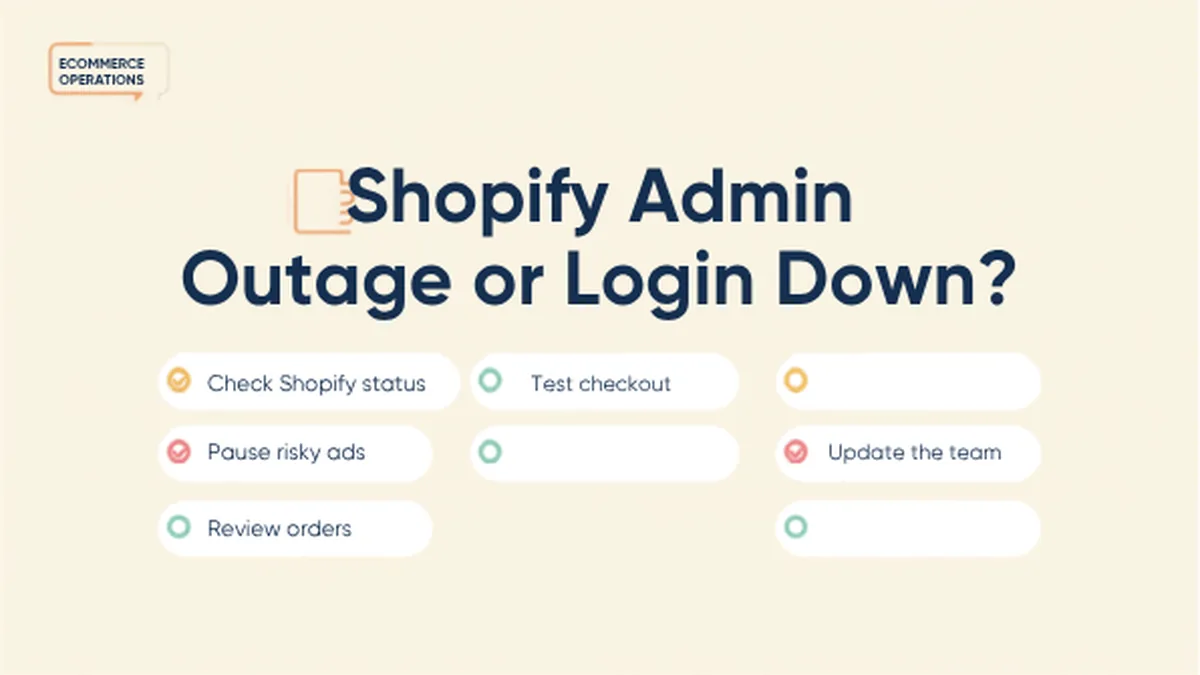
When Shopify admin will not load, the first instinct is to refresh, panic, and refresh again. That is understandable. Your store may still be taking orders, customers may be asking questions, and your team may not know whether the problem is Shopify, your account, your browser, your internet connection, or a third-party app.
This checklist is written for store owners and operators searching for Shopify admin outage, Shopify login down, or Shopify admin down. The goal is to help you confirm what is happening, keep orders protected, communicate clearly, and avoid creating extra problems while the issue is being resolved.
A short outage can still be expensive if it happens during a product launch, a high-spend ad campaign, a flash sale, or a busy fulfillment window. The stores that handle these moments best usually have two things ready: a calm verification process and a simple operating dashboard that does not depend entirely on one browser tab.
First: separate panic from diagnosis
Before changing passwords, disabling apps, clearing settings, or sending a public apology, slow down and identify what kind of issue you are dealing with. A login problem for one staff account is different from a store-wide admin outage. A slow admin is different from a checkout issue. A storefront issue is different from a payment provider issue.
Use a quick note-taking system during the first five minutes. Write down the time the problem started, the exact error message, which browsers or devices were tested, whether the storefront loads, whether checkout works, and which team members are affected. That small record will help if you need to contact support or review the incident later.
Step 1: Confirm whether Shopify is actually down
Start by separating a platform outage from a local login issue. Check Shopify's official status page, then try your admin from a second browser, device, or network. If the storefront is still working but the admin is slow or unavailable, your customer-facing site may continue taking orders while your team waits for admin access to recover.
It is also worth checking whether the issue affects only one account. If another staff member can log in, the problem may be account-specific. If nobody can log in and multiple networks show the same problem, the chance of a broader incident is higher.
Nugglets also has a quick evergreen guide for the broader question: is Shopify down?
Step 2: Do not repeatedly change account settings
If login is failing during a suspected outage, avoid making multiple password resets, staff account changes, app permission changes, or domain changes unless you have a clear reason. During an incident, repeated account changes can make troubleshooting harder once service returns.
This is especially important when several people are trying to help at once. One person may reset a password while another changes two-factor settings and another removes an app. When the platform recovers, the team is left untangling which change mattered. Assign one person to own admin troubleshooting and one person to own customer or fulfillment communication.
If you do need to reset a password, record the time and the account. If you need to change staff access, record who approved it. A clean timeline matters more than frantic activity.
Step 3: Check admin, checkout, and storefront separately
Not every Shopify issue affects the whole business in the same way. Break the problem into three areas:
- Admin: Can your team log in, view orders, edit products, manage apps, and access reports?
- Storefront: Can customers browse products, add to cart, view pages, and use search or navigation?
- Checkout: Can customers complete payment, receive confirmation, and trigger normal order notifications?
This distinction matters. If only admin is affected, your priority is order visibility and team communication. If checkout is affected, your priority is customer messaging, support readiness, and paid traffic control. If the storefront is affected, your priority is making sure customers know whether they should come back later.
Step 4: Protect paid traffic and customer expectations
If checkout appears affected, pause or reduce paid campaigns until you know customers can complete purchases. Continuing to send paid traffic into a broken checkout wastes budget and can create support tickets from frustrated buyers. If the storefront is online but admin is unavailable, you may keep campaigns running while monitoring support messages closely.
For customer-facing communication, keep updates short and factual. Avoid blaming tools, guessing at root causes, or promising exact recovery times unless Shopify has published them. A simple message such as "We are monitoring a platform issue and will send order updates as soon as admin access is restored" is usually enough.
For internal communication, use a single channel or document. Name the owner, record status updates, and keep decisions visible. Scattered texts and private messages make the incident harder to manage.
Step 5: Keep an external operations view
A Shopify admin outage is a reminder that store operations should not live in one browser tab. When you have an external dashboard for orders, costs, supplier notes, product performance, and profit context, your team has more continuity during short platform issues.
That does not mean replacing Shopify. It means keeping enough operational context outside the admin so you can answer basic questions: what orders were recently placed, which suppliers need action, which products are driving profit, which campaigns are risky to leave running, and which customers may need updates.
For a calmer operating setup, explore how Nugglets helps teams run a Shopify store from one dashboard.
Step 6: Know what your team can still do
During an admin outage or login problem, some work may still be possible. Support can prepare canned responses, marketing can pause campaigns, operations can review supplier notes, and leadership can decide whether to post a customer-facing update. The key is not to freeze the whole team just because one system is unavailable.
Create a short list of outage-safe work. Examples include documenting the timeline, checking customer messages, reviewing ad spend, preparing fulfillment priorities, checking external order notifications, and monitoring public status updates. When admin access returns, your team can move faster because the surrounding work is already organized.
Step 7: Review the incident after access returns
Once Shopify admin is available again, do a quick review instead of moving on immediately. Check recent orders, failed payment reports, support tickets, fulfillment queues, inventory changes, refund requests, and ad spend during the affected window.
Then write down what you will do next time. A small outage playbook can include who checks status, who pauses ads, who answers customers, who watches orders, and where the team records updates. It does not need to be fancy. A one-page checklist is better than relying on memory during the next stressful morning.
Shopify admin outage checklist
- Check the official Shopify status page.
- Test a second browser, device, and network.
- Ask another staff member to test login if it is safe to do so.
- Confirm whether admin, storefront, or checkout is affected.
- Record the start time and exact error messages.
- Avoid unnecessary password, domain, or app changes.
- Assign one owner for troubleshooting and one owner for communication.
- Pause paid traffic if checkout is affected.
- Keep customer updates short, calm, and factual.
- Review orders, refunds, support messages, and ads after recovery.
What to tell customers
Most customers do not need a technical explanation. They need to know whether their order is safe, whether checkout works, and when they can expect an update. Use clear language and avoid over-explaining the backend. If orders are still processing normally, say so. If updates may be delayed, say that too.
For example: "Our store platform is currently experiencing an admin access issue. Checkout is still available, and we are monitoring orders. If your order update is delayed, we will follow up as soon as access is restored." Adjust the message based on what you have actually verified.
What to tell your team
Your team needs more detail than customers, but not chaos. Use a single internal update format: current status, customer impact, owner, next check time, and decisions made. That prevents repeated questions and keeps everyone from trying random fixes at the same time.
For example: "Admin login failing for two staff accounts since 9:12 a.m. Storefront loads. Checkout test pending. Jamie checking status page. Alex pausing nonessential campaigns until checkout is confirmed. Next update at 9:30." Short, factual updates reduce confusion.
How to prepare before the next outage
The best time to prepare for a Shopify admin outage is before one happens. Keep staff access clean, document who owns each operational area, maintain current product cost data, and keep a separate view of important store metrics. If you rely on paid ads, write down who can pause spend quickly. If you rely on suppliers, keep contact details easy to find outside the admin.
Preparation also means knowing your normal numbers. If you understand typical order volume, refund rate, ad spend, and fulfillment timing, it is easier to spot whether an outage created a real business impact. Without baseline numbers, every issue feels larger and harder to interpret.
Where Nugglets helps
Nugglets gives store owners a central place to monitor sales, profit, orders, suppliers, inventory signals, and competitor activity. During normal days, that helps you work faster. During messy days, it gives you more context outside the Shopify admin so you can make calmer decisions.
If your current operations depend on too many tabs, spreadsheets, and memory, a command center can reduce that pressure. You can try the Nugglets live demo to see how a central ecommerce dashboard keeps more of your store context in one place.
Frequently asked questions
Why can't I log in to Shopify admin?
It could be a Shopify platform issue, a local browser problem, an account-specific issue, a network problem, or a security setting. Test another browser and network, check official status, and avoid repeated account changes until you know the scope.
Can customers still order if Shopify admin is down?
Sometimes, yes. Admin access, storefront availability, and checkout availability can be affected differently. Test storefront and checkout separately before assuming the whole store is down.
Should I pause ads during a Shopify outage?
If checkout is affected or you cannot verify that customers can purchase, pausing or reducing paid traffic is usually wise. If only admin is affected and checkout works, you may keep campaigns running while monitoring support and order signals.
A simple outage playbook template
If you do not already have an outage playbook, start with a one-page template. Include the incident owner, backup owner, customer support owner, paid traffic owner, fulfillment owner, and the place where updates will be posted. Add links to the Shopify status page, your support inbox, your ad accounts, your supplier notes, and any external dashboard your team uses.
The template should also define decision points. For example: if checkout cannot be confirmed within 10 minutes, pause nonessential paid traffic. If admin is unavailable for more than 30 minutes, send an internal update to the whole team. If customer order updates are delayed, prepare a short support response. These rules prevent every incident from becoming a fresh debate.
Keep the playbook simple enough that someone can use it under pressure. A perfect document nobody opens is less useful than a short checklist the team trusts.
How to measure the business impact
After access returns, estimate the impact with numbers instead of vibes. Compare order volume during the incident window with a normal period. Check whether conversion rate dropped, whether paid spend continued during a checkout problem, whether refund requests increased, and whether support tickets piled up. If checkout was never affected, the business impact may be much smaller than the stress made it feel.
Write down what actually happened and what the team changed. If the incident revealed that nobody knew who could pause ads, fix that. If supplier notes were trapped in one person's inbox, move them somewhere shared. If the team lacked a clean view of sales and orders outside Shopify admin, consider adding one before the next outage tests the process again.
Bottom line
If Shopify admin is down or Shopify login is not working, treat it like an operations incident: verify the scope, protect the customer experience, keep your team aligned, and review what happened after access returns. The stores that handle outages best are usually the ones with clear dashboards, clean roles, and a simple checklist ready before they need it.
Run your whole store from one dashboard
Track orders, suppliers, inventory and real profit with Nugglets.
See NuggletsKeep reading


Comments 0