
Best Way to Manage Multiple Shopify Stores
 Brian @brian
·
·
10 min read
28 views
Brian @brian
·
·
10 min read
28 views
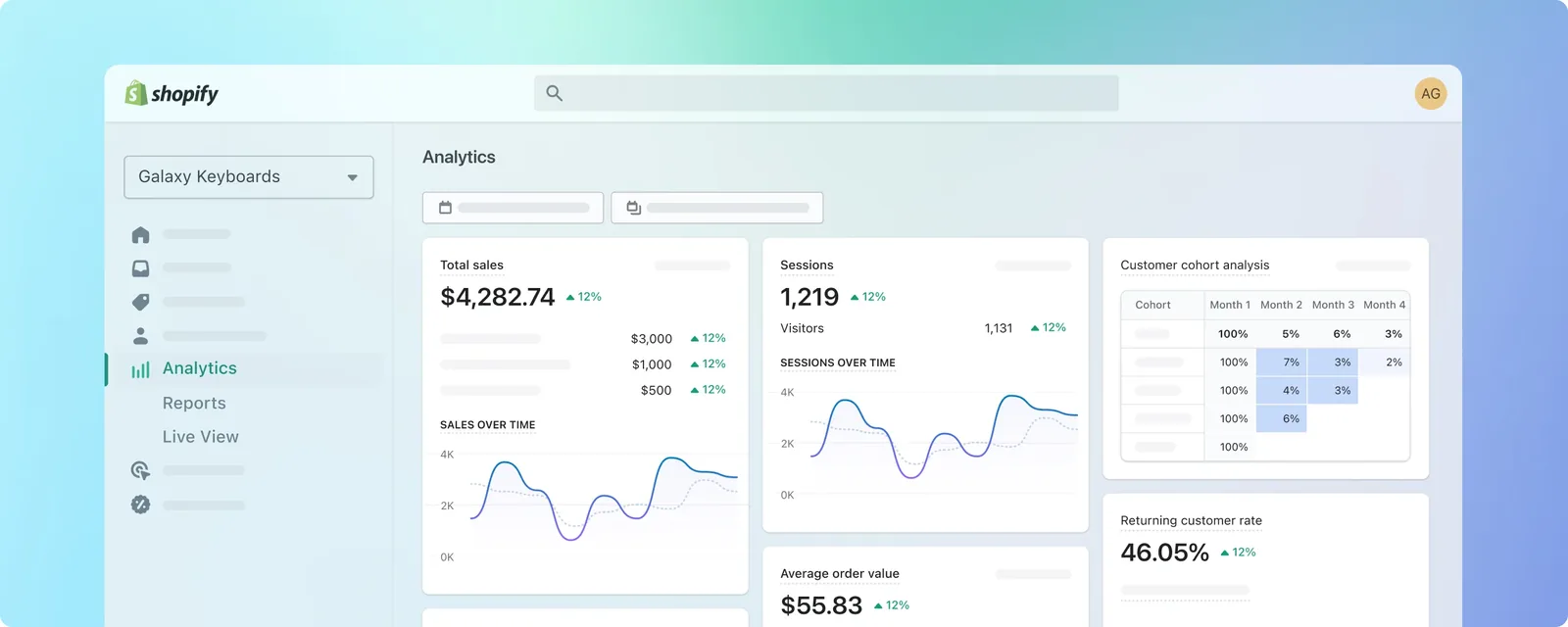
Running multiple Shopify stores can be a smart growth strategy. You might operate separate brands, sell into different regions, test product niches, support wholesale and direct-to-consumer customers, or isolate stores by supplier.
The problem is that growth can quickly turn into tab-switching chaos.
One store has rising sales but poor margins. Another has refund issues. A third has a supplier delay. Meanwhile, ad spend, transaction fees, shipping costs, and inventory changes are scattered across separate Shopify admins, spreadsheets, apps, and supplier portals.
The best way to manage multiple Shopify stores is to create one operating system for your business:
-
Use the right store structure.
-
Centralize performance visibility.
-
Standardize order, inventory, and supplier workflows.
-
Automate repeatable tasks.
-
Manage by net profit, not revenue alone.
Shopify’s store switcher makes it easier to navigate between stores associated with the same email address. But switching stores is not the same as managing them strategically. A true multi-store workflow should help you compare store health, spot exceptions, and act before a small issue becomes a costly one. (Shopify Help Center)
1. Decide Whether You Actually Need Separate Shopify Stores

Before adding another store, define why it needs to exist.
Separate Shopify stores make sense when you have distinct brands, different legal entities, separate product catalogs, wholesale operations, supplier relationships, or customer experiences that would be difficult to manage in one storefront.
For international expansion, a separate store is not always necessary. Shopify Markets can tailor currency, language, product availability, pricing, domains, theme content, and taxes for different customer segments within a store. (Shopify Help Center)
Use this simple decision framework:
| Situation | Best fit |
|---|---|
| Same brand, different countries or currencies | Shopify Markets first |
| Different brands with different audiences | Separate Shopify stores |
| Wholesale and DTC customers need different experiences | Separate or dedicated B2B setup |
| Different suppliers, catalogs, margins, or fulfillment rules | Usually separate stores |
| Testing a new product niche | Separate test store, but connect it to central reporting |
Shopify Plus organizations can use expansion stores for specialized needs such as international expansion, product-line extensions, B2B stores, and employee-only stores. However, each expansion store still operates independently, with separate settings, data, products, inventory, and configurations unless you add tools to sync them. (Shopify Help Center)
The key lesson: multiple stores should create strategic clarity, not duplicate manual work.
2. Build One Multi-Store Shopify Dashboard

A multi-store dashboard is the foundation of efficient store management.
Instead of opening every Shopify admin to answer basic questions, use a single view that lets you compare stores, identify problems, and prioritize action. Shopify provides store-level analytics and reporting, while organization-level permissions can allow eligible users to view aggregate data across multiple stores. (Shopify)
Your Shopify dashboard should show both portfolio-level totals and store-level breakdowns.
Track these metrics daily:
-
Gross sales
-
Net sales
-
Orders and average order value
-
Estimated net profit
-
Product cost and shipping cost
-
Payment processing fees
-
Ad spend
-
Refunds and chargebacks
-
Top-performing products
-
Low-stock, delayed, or supplier-risk products
This is where a Shopify profit tracker matters. Revenue can look healthy while margins collapse due to higher COGS, increased ad costs, discounting, shipping, or refunds.
A useful dropshipping profit tracker should answer:
-
Which store produced the most profit today?
-
Which products are selling but losing money?
-
Which store has the highest refund rate?
-
Did paid traffic improve profit, or just increase sales volume?
-
Which supplier or product deserves attention first?
Treat revenue as a signal. Treat profit as the decision metric.
3. Standardize the Data You Compare Across Stores
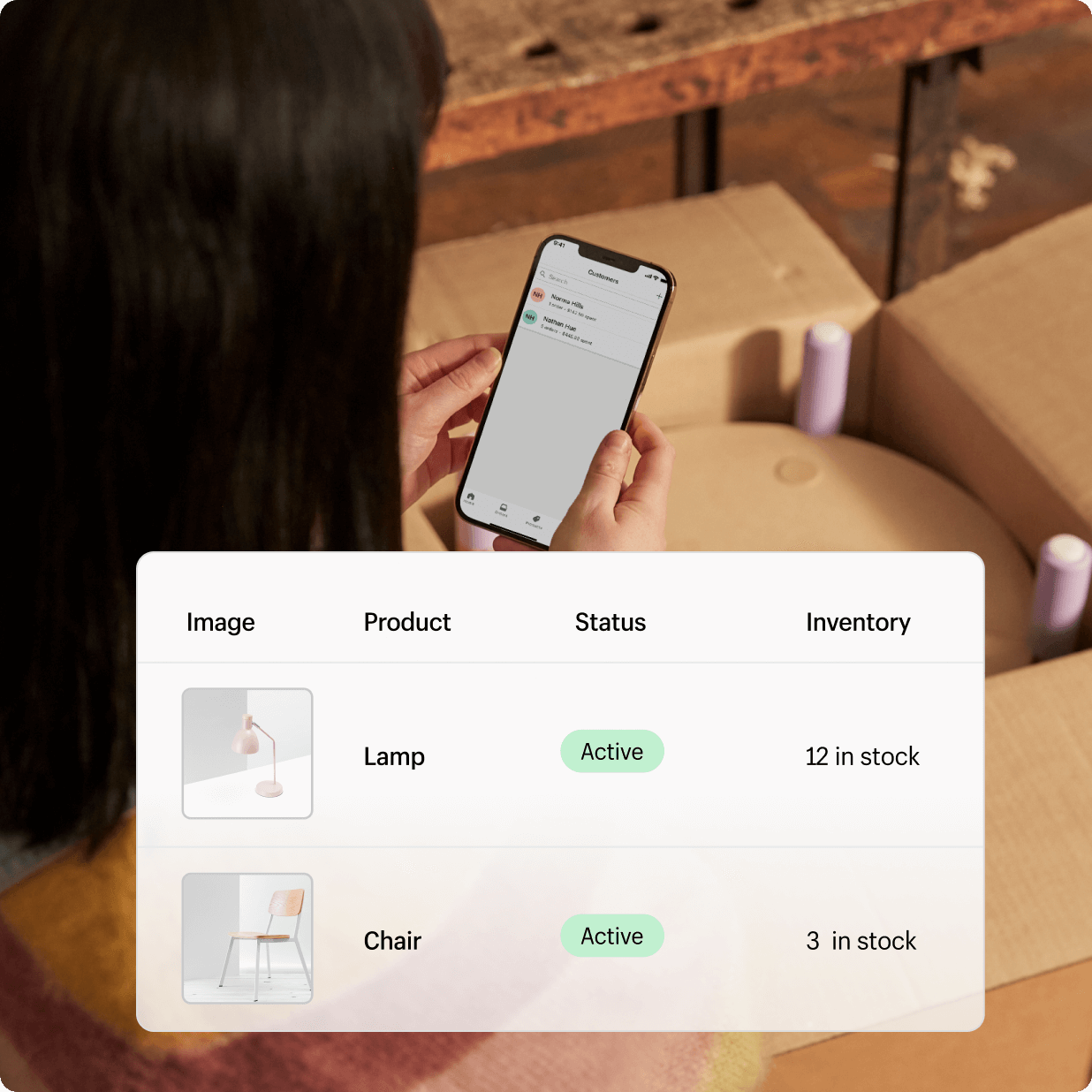
Multi-store reporting becomes misleading when every store calculates profit differently.
For example, one store may include payment fees in profit calculations while another does not. One store may update product cost weekly, while another relies on an old spreadsheet. One team member may log refunds manually, while another ignores them until month-end.
Create a shared profit formula for every Shopify store:
Net profit = Net sales − COGS − shipping − transaction fees − ad spend − refunds − other variable costs
Then standardize:
-
Product naming conventions
-
SKU formats
-
Supplier names
-
Cost update frequency
-
Refund reason categories
-
Shipping-cost logic
-
Ad account attribution rules
-
Store naming conventions
-
Reporting date ranges
This makes your ecommerce profit tracker trustworthy. It also makes store comparisons useful.
For example, Store A may generate less revenue than Store B but produce more net profit because it has lower refund rates, stronger average order value, better supplier pricing, or less expensive customer acquisition.
Without standardized data, a multi-store dashboard becomes a collection of attractive numbers instead of a management system.
4. Centralize Order Management and Exception Handling
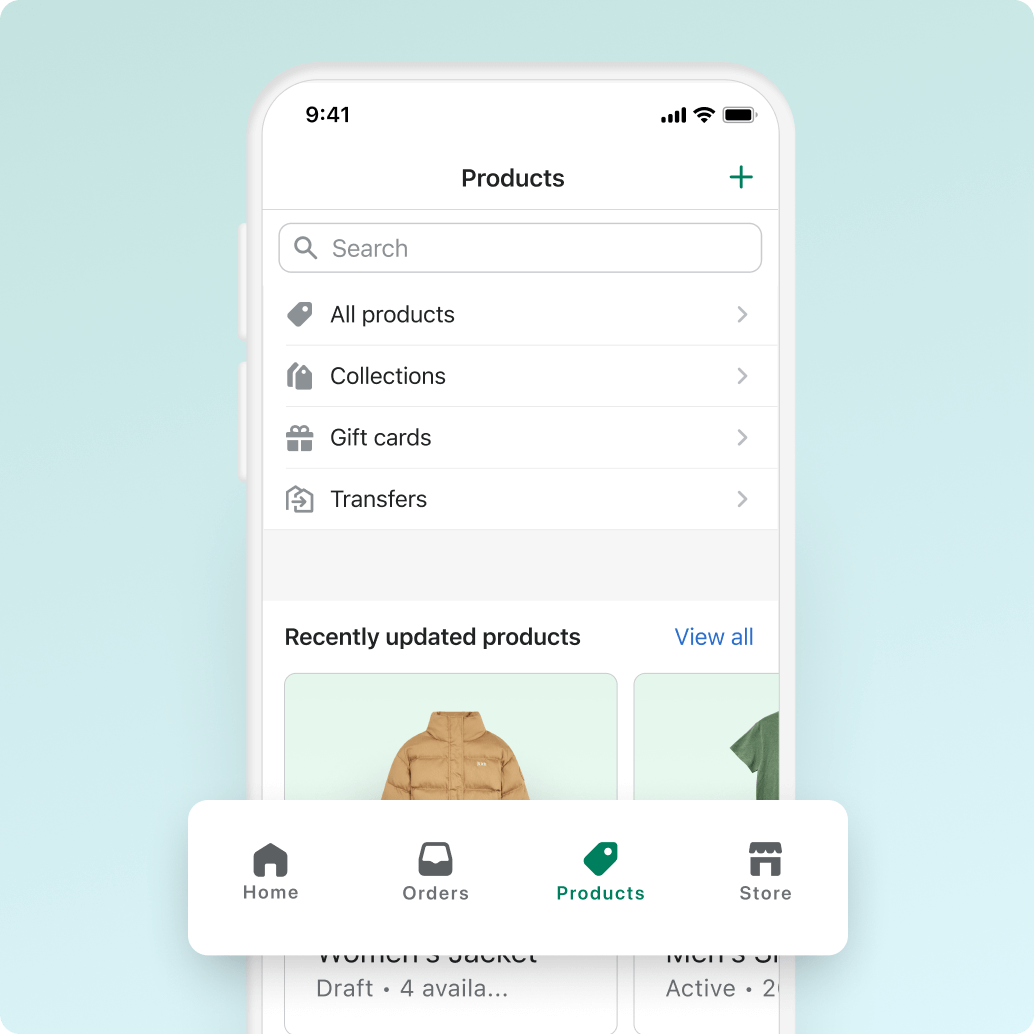
Order management becomes harder with every additional store because exceptions multiply.
The normal orders are rarely the problem. The expensive problems are delayed fulfillment, address errors, supplier stockouts, fulfillment failures, customer complaints, cancellations, and refund requests.
Build a Shopify order management dashboard around exceptions, not just order volume.
Your operations team should be able to see:
-
Orders awaiting fulfillment
-
Orders older than your target fulfillment time
-
Orders with failed payment or fraud review issues
-
Orders affected by supplier stockouts
-
Orders with tracking delays
-
High-value orders requiring review
-
Orders likely to create customer support tickets
-
Refund requests and chargeback risks
Shopify’s broader operations tools are designed around inventory, orders, fulfillment, shipping, and returns. (Shopify) The practical advantage of a multi-store dashboard is seeing which store needs attention first without manually reviewing every storefront.
Create a simple priority system:
| Priority | Trigger | Response |
|---|---|---|
| Urgent | Stockout, fulfillment failure, chargeback risk | Assign owner immediately |
| High | Orders delayed beyond SLA | Contact supplier or fulfillment partner |
| Medium | Refund spike or low-margin product | Review product, ad, and supplier data |
| Low | Routine catalog, pricing, or reporting issue | Add to weekly operations queue |
This approach keeps your team focused on problems that affect profit and customer experience.
5. Manage Suppliers and Inventory by Store, Product, and Risk
Supplier management is one of the biggest reasons multi-store operations become difficult.
A product can look profitable until a supplier raises pricing, changes shipping terms, runs out of stock, or starts delivering late. If you manage several dropshipping stores, supplier visibility should be part of your daily operating dashboard.
For each supplier, track:
-
Active products supplied
-
Current product cost
-
Shipping cost and delivery estimate
-
Stock availability
-
Recent price changes
-
Order defect rate
-
Refund rate by product
-
Average fulfillment time
-
Backup supplier availability
The goal is not simply to know what is selling. It is to know which products are safe to scale.
Build alerts for:
-
Product cost increases
-
Competitor price changes
-
Supplier stockouts
-
Long fulfillment times
-
Refund-rate spikes
-
Sudden margin drops
-
Products with high ad spend but low net profit
This turns your Shopify dashboard into a decision tool rather than a reporting tool.
6. Use Automation for Repeatable Multi-Store Work
Manual work grows faster than store count.
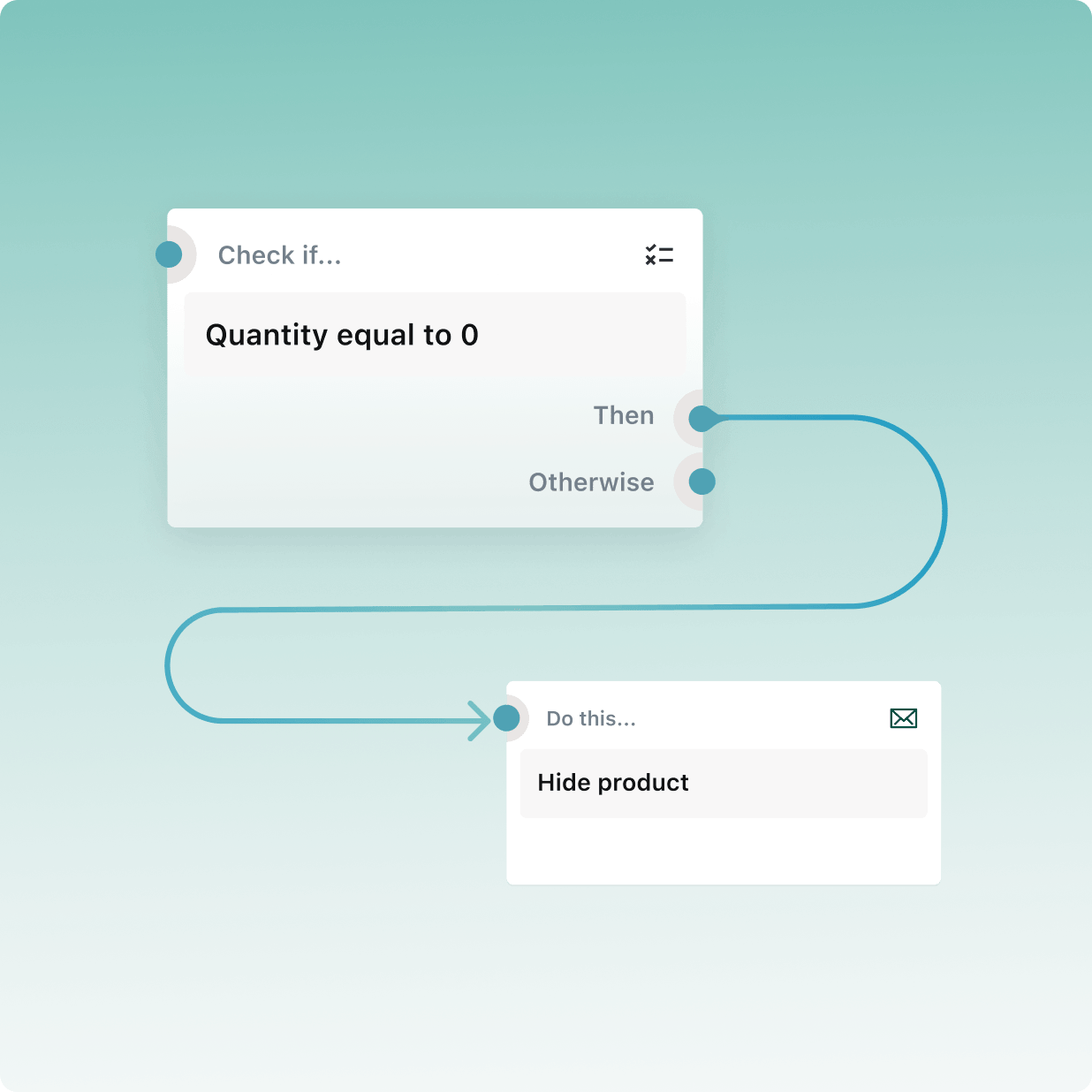
Automation helps control that growth. Shopify Flow can automate processes within a store and across connected apps using triggers, conditions, and actions. Shopify states that Flow is available as a free app on Basic, Grow, Advanced, and Plus plans, although some capabilities vary by plan. (Shopify Help Center)
Start with practical automations:
-
Tag high-risk orders for review.
-
Notify your team when inventory reaches a threshold.
-
Hide products when supplier inventory is zero.
-
Flag orders that remain unfulfilled after a set period.
-
Send an alert when a refund is created.
-
Add customer tags based on order behavior.
-
Notify a manager when a high-value order arrives.
-
Route supplier-specific orders to the correct team member.
-
Create daily summaries of store-level exceptions.
Avoid automating everything at once. Begin with the repeated tasks that create the most operational risk or consume the most time.
A good rule: automate actions that are predictable, frequent, and easy to validate. Keep human review for pricing changes, supplier escalation, product decisions, and major customer service issues.
7. Give Teams Clear Access Without Giving Everyone Full Control
As more stores are added, permission management becomes a business-risk issue.
Shopify lets organizations assign permissions through roles. Organization permissions can cover business-level tasks, while store permissions control what a user can do inside an individual store. (Shopify Help Center)
Create roles based on responsibilities, such as:
-
Store manager
-
Order operations specialist
-
Customer support lead
-
Product researcher
-
Supplier manager
-
Finance or profit analyst
-
Marketing buyer
-
Executive viewer
Keep access narrow by default. A support agent may need access to orders and customers but not billing. A product researcher may need analytics and product data but not refunds or payments. A finance analyst may need reporting access across stores but should not change storefront settings.
Clear roles reduce accidental changes, improve accountability, and make it easier to operate several stores without creating security gaps.
8. Add Competitor and Product Research to Your Weekly Routine
A strong multi-store operation does not only react to internal data. It also watches the market.
Use a Shopify competitor tracker to monitor:
-
Competitor pricing
-
Product availability
-
New product launches
-
Shipping offers
-
Bundle structures
-
Promotions and discounts
-
Landing-page changes
-
Ad angles and creative patterns
A Shopify spy tool or dropshipping spy tool can be useful for product research, but it should support validation, not replace it.
Before adding a product to another store, check:
-
Is demand visible across more than one signal?
-
Can the supplier maintain stock and delivery expectations?
-
Is the margin strong after shipping, fees, and ad spend?
-
Can your store offer a better angle, bundle, or customer experience?
-
Is the product too similar to a saturated offer?
-
Does the product fit the brand and existing audience?
The most profitable multi-store operators do not chase every trending product. They create a repeatable system for testing, validating, scaling, and retiring products.
9. Run a Daily, Weekly, and Monthly Multi-Store Cadence
The best systems are simple enough to use consistently.
Daily review
Check your multi-store dashboard for:
-
Total sales and estimated profit
-
Margin changes
-
Unfulfilled orders
-
Supplier issues
-
Refunds and chargebacks
-
Ad spend spikes
-
Low-stock or unavailable products
-
Competitor price changes
Weekly review
Review:
-
Store-by-store profitability
-
Best and worst products
-
Refund reasons
-
Supplier performance
-
Customer acquisition trends
-
Pricing opportunities
-
Product-test results
-
Team workload and exceptions
Monthly review
Decide:
-
Which stores deserve more budget
-
Which products should be removed
-
Which suppliers need replacement
-
Whether a store should be simplified, consolidated, or expanded
-
Whether profit targets were achieved
-
What automation or reporting gap caused unnecessary work
This cadence helps you manage stores proactively instead of discovering issues after they have already affected profit.
10. The Best Multi-Store Strategy Is Centralized Visibility With Local Control
Managing multiple Shopify stores does not require treating every storefront exactly the same.
Each store can maintain its own brand, products, customers, suppliers, and marketing strategy. But the business should still operate from one source of truth for performance, profit, exceptions, and priorities.
That is the role of a strong Shopify dashboard and dropshipping profit tracker.
The winning structure looks like this:
-
Separate storefronts for distinct brands, markets, or business models
-
One multi-store dashboard for performance visibility
-
One profit framework for comparing stores fairly
-
One order exception process for operational speed
-
One supplier-risk system for inventory and fulfillment control
-
One automation layer for repetitive tasks
-
One weekly decision process based on net profit
Revenue tells you where attention is going. Profit tells you where the business is actually winning.
Frequently Asked Questions
Can I manage multiple Shopify stores from one login?
Yes. Shopify’s store switcher lets users move between stores connected to the same email address, including through a searchable store list. (Shopify Help Center)
Should I use Shopify Markets or create separate stores?
Use Shopify Markets when you need localized experiences such as currencies, languages, regional pricing, product availability, or tailored content within one business. Use separate stores when brands, operations, suppliers, catalogs, or customer experiences need to be independent. (Shopify Help Center)
What should a multi-store Shopify dashboard track?
At minimum, track sales, net profit, COGS, shipping, fees, ad spend, orders, refunds, fulfillment delays, inventory risk, supplier issues, and store-level product performance.
Related multi-store hub
- Read the complete managing multiple Shopify stores guide - this is the main hub for this topic
- Manage multiple Shopify stores from one dashboard - focus on the dashboard workflow
- Managing multiple Shopify stores without losing profit - connect multi-store operations to margin
- Ecommerce business dashboard - tie store-level metrics to owner decisions
Run your whole store from one dashboard
Track orders, suppliers, inventory and real profit with Nugglets.
See NuggletsKeep reading
How to Start Dropshipping on Amazon 2026

How to Calculate Your Break-Even ROAS for Shopify


Comments 0