
Shopify Profit Tracker: How to See Your Real Net Profit in One Dashboard
 Brian @brian
·
·
10 min read
3 views
Brian @brian
·
·
10 min read
3 views
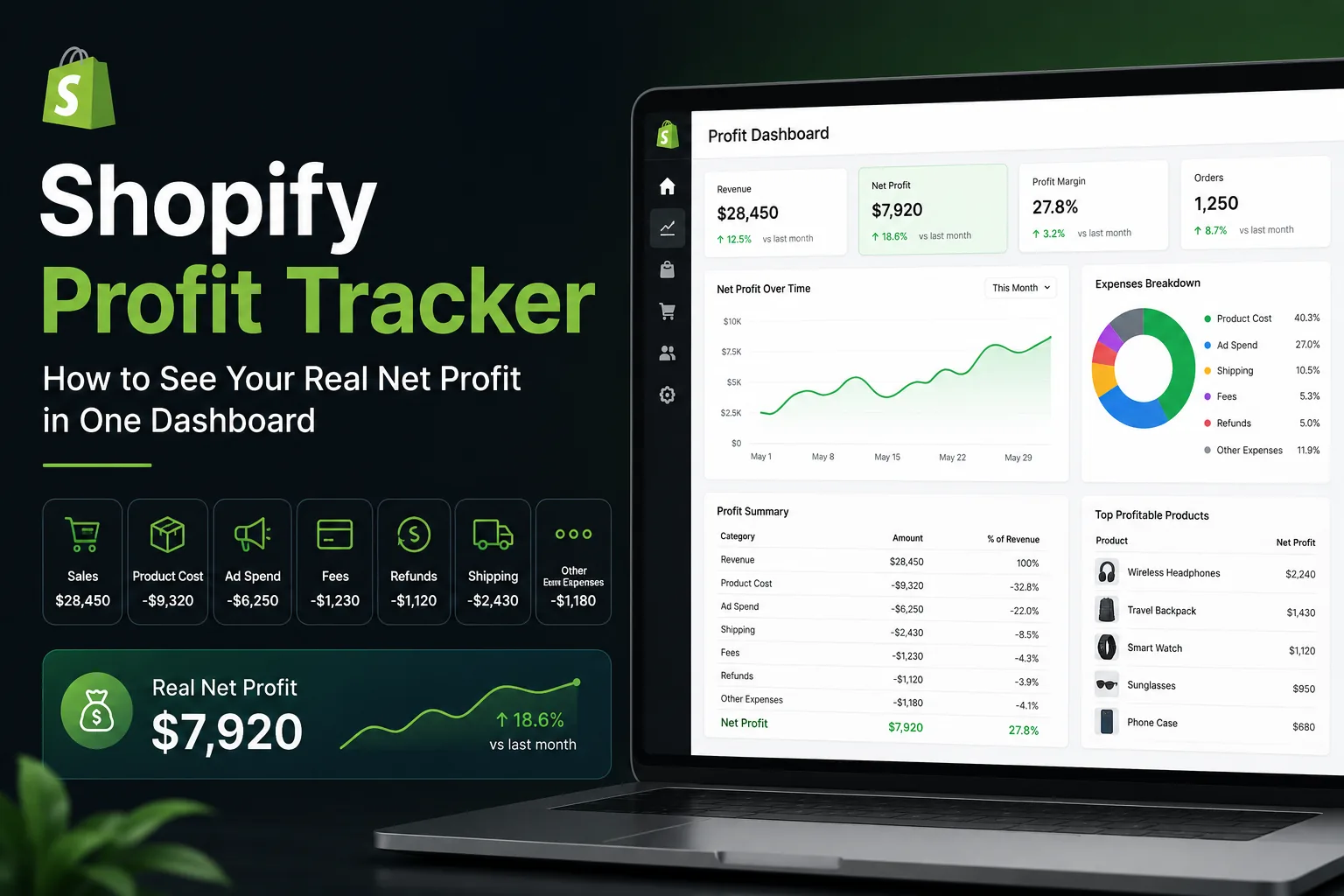
A Shopify store can make thousands of dollars in sales and still lose money.
That is why revenue alone is not enough. You need a Shopify profit tracker that shows what is actually left after every cost connected to running your business.
Your Shopify dashboard can show sales, orders, customers, and store activity. But real profitability requires looking beyond revenue. You need to account for product costs, discounts, refunds, ad spend, payment processing fees, shipping costs, subscriptions, apps, contractors, and other business expenses.
This guide explains how to see your real net profit in one dashboard and why a Shopify profit tracker can help you make smarter decisions every day.
What Is a Shopify Profit Tracker?
A Shopify profit tracker is a dashboard or reporting system that helps store owners understand how much money they actually keep after expenses.
Instead of only showing sales revenue, a useful profit tracker brings together information such as:
-
Gross sales
-
Discounts
-
Refunds and returns
-
Product cost
-
Shipping cost
-
Shopify and payment processing fees
-
Advertising spend
-
App subscriptions
-
Supplier charges
-
Operating expenses
-
Net profit
-
Profit margin
The goal is simple: see whether your store is truly making money.
Shopify offers finance and profit reports that can help merchants review sales, payments, gross profit, discounts, returns, taxes, and other financial data. However, accurate profit reporting depends heavily on having product cost information recorded for the items you sell. (Shopify Help Center)
Revenue Is Not the Same as Profit
A common mistake is assuming that sales equal profit.
For example, imagine your Shopify store generates $10,000 in revenue this month.
That sounds great. But now subtract:
| Expense | Amount |
|---|---|
| Product costs | $3,500 |
| Facebook and TikTok ads | $2,500 |
| Payment processing fees | $350 |
| Shipping costs | $700 |
| Refunds and returns | $600 |
| Shopify apps and subscriptions | $250 |
| Contractor or virtual assistant costs | $500 |
Your store may have generated $10,000 in revenue, but your real profit is much lower.
$10,000 revenue - $8,400 expenses = $1,600 net profit
Without a Shopify profit tracker, it is easy to see strong sales and assume your business is doing better than it really is.
How Shopify Calculates Gross Profit
Shopify’s profit reports generally calculate gross profit by subtracting product cost from net sales.
The formula is:
Gross Profit = Net Sales - Cost of Goods Sold
Shopify defines gross margin as:
Gross Margin = (Net Sales - Cost) / Net Sales × 100
Discounts and refunds can reduce your actual margin because they lower net sales while your original product cost may stay the same. (Shopify Help Center)
For example:
| Metric | Amount |
|---|---|
| Product selling price | $50 |
| Product cost | $20 |
| Gross profit before ads and fees | $30 |
| Gross margin | 60% |
That product may look profitable.
But after advertising, shipping, payment fees, returns, and other business costs, that $30 gross profit may become only $8 to $12 in real net profit.
That is why tracking gross profit alone is not enough.
What Real Net Profit Means for Shopify Stores
Real net profit is what remains after all business-related costs are removed from your revenue.
A more complete formula looks like this:
Net Profit = Revenue - Product Costs - Shipping - Payment Fees - Advertising - Refunds - Apps - Payroll - Other Expenses
For a dropshipping business, this often includes:
-
Supplier product cost
-
Supplier shipping cost
-
Currency conversion fees
-
Shopify transaction fees
-
Payment processing fees
-
TikTok Ads spend
-
Meta Ads spend
-
Google Ads spend
-
Refunds
-
Chargebacks
-
Return labels
-
App subscriptions
-
Customer support costs
-
Virtual assistants
-
Product research tools
For a private-label or inventory-based Shopify store, you may also need to track:
-
Warehousing
-
Packaging
-
Storage
-
Fulfillment costs
-
Import duties
-
Inventory write-offs
-
Manufacturing costs
A Shopify profit tracker helps put these numbers in one place so you do not have to jump between Shopify, ad accounts, supplier invoices, spreadsheets, and bank statements.
Why Shopify Sales Reports Can Be Confusing
Shopify gives merchants useful reporting tools, but different reports can show different numbers depending on what they measure.
For example, Shopify’s finance reports separate gross sales, discounts, returns, net sales, shipping, taxes, and payment activity. Net sales are calculated as gross sales minus discounts and returns. (Shopify Help Center)
Shopify also notes that sales reports and payment reports can differ because sales reports are based on orders, while payment reports focus on payments received. Timing can affect the numbers too. An order placed in one month and paid in another may appear in different reporting periods. (Shopify Help Center)
Refunds and returns can also create confusion. Shopify treats returns and refunds as separate reporting items in some reports, which can lead to different numbers across dashboards and exports. (Shopify Help Center)
This does not mean Shopify reporting is wrong. It means store owners need a system that makes the information easier to understand.
The Numbers Every Shopify Profit Tracker Should Show
A useful Shopify profit tracker should show more than one large revenue number.
Here are the most important metrics to track.
1. Gross Sales
Gross sales are the total value of products sold before discounts, returns, shipping, taxes, and other adjustments.
This number is useful for seeing sales volume, but it should never be treated as profit.
2. Net Sales
Net sales show your sales after discounts and returns.
Shopify defines net sales as gross sales minus discounts and returns. (Shopify Help Center)
This is a better starting point for profit tracking than gross sales.
3. Cost of Goods Sold
Cost of goods sold, often called COGS, is what you paid for the products you sold.
For dropshippers, this is usually your supplier cost.
For inventory-based businesses, it may include manufacturing, wholesale cost, packaging, and inventory expenses directly tied to the products sold.
Your Shopify profit data is only as accurate as your product cost data. Shopify states that profit reporting depends on cost information being recorded when products are sold. (Shopify Help Center)
4. Advertising Spend
For many ecommerce stores, advertising is one of the largest costs.
A product can appear highly profitable until you include the amount spent to acquire the customer.
Track ad spend from:
-
Meta Ads
-
Facebook Ads
-
Instagram Ads
-
TikTok Ads
-
Google Ads
-
Snapchat Ads
-
Influencer campaigns
-
Affiliate commissions
5. Transaction and Payment Fees
Payment processing fees can quietly reduce your margins over time.
You may have fees from:
-
Shopify Payments
-
PayPal
-
Stripe
-
Shop Pay
-
International payment processing
-
Currency conversion
-
Marketplace commissions
A strong Shopify profit tracker should include these automatically or allow them to be added as expenses.
6. Shipping and Fulfillment Costs
Shipping costs can make or break a product.
Track:
-
Supplier shipping
-
Shipping labels
-
Fulfillment center fees
-
Packaging
-
Return shipping
-
Duties and import charges
Shopify profit reporting can include shipping charges, shipping costs, duties, and import taxes when reviewing profitability by order or market. (Shopify Help Center)
7. Refunds and Returns
Refunds can quickly damage a product’s profitability.
A product with a high return rate may look successful based on order volume, but it may be losing money after refunds, replacement products, shipping labels, and customer support time.
Your dashboard should show:
-
Refund total
-
Refund rate
-
Return rate by product
-
Refund reason
-
Refund impact on profit
-
Products with the highest return cost
8. Operating Expenses
Your net profit should include expenses that are not directly connected to one order.
Examples include:
-
Shopify plan
-
Shopify apps
-
Email software
-
Product research tools
-
Design tools
-
Bookkeeping software
-
Contractor payments
-
Virtual assistants
-
Agency fees
-
Office expenses
These expenses may not seem huge individually, but together they can reduce your real profit significantly.
Example: Shopify Revenue vs Real Net Profit
Here is a simple example of how a Shopify profit tracker can reveal the truth behind a good sales month.
| Metric | Amount |
|---|---|
| Gross sales | $25,000 |
| Discounts | -$2,000 |
| Refunds and returns | -$1,500 |
| Net sales | $21,500 |
| Product costs | -$7,500 |
| Shipping and fulfillment | -$2,000 |
| Advertising spend | -$7,000 |
| Payment processing fees | -$900 |
| Shopify apps and subscriptions | -$350 |
| Contractors and support | -$750 |
| Real net profit | $3,000 |
The store made $25,000 in gross sales.
But the owner only kept $3,000 before taxes.
That is why a Shopify profit tracker is important. It helps you avoid making decisions based on revenue that does not turn into actual profit.
How to Set Up a Shopify Profit Tracking Dashboard
You can start tracking real profit with a simple process.
Step 1: Add Product Costs to Shopify
Make sure every product and variant has a current cost entered.
This is important because Shopify’s gross profit reporting only includes products with cost information available at the time of sale. (Shopify Help Center)
Review costs whenever:
-
Your supplier raises prices
-
Shipping prices increase
-
You negotiate a better deal
-
Currency exchange rates change
-
You switch suppliers
-
You bundle products together
Step 2: Track Advertising Spend Daily
Do not wait until the end of the month to review ad spend.
Track:
-
Daily spend
-
Cost per purchase
-
Cost per click
-
Return on ad spend
-
Profit after ad spend
-
Winning campaigns
-
Losing campaigns
A campaign can have a strong ROAS but still produce weak profit if the product has low margins, high shipping costs, or high refund rates.
Step 3: Include Refunds and Chargebacks
A Shopify profit tracker should subtract refunds automatically from your performance numbers.
You should also monitor chargebacks because they can include:
-
Lost revenue
-
Product cost
-
Shipping cost
-
Dispute fees
-
Time spent dealing with the dispute
Step 4: Add Fixed Monthly Expenses
Add all recurring operating costs to your dashboard.
Examples:
-
Shopify plan
-
Domain hosting
-
Email marketing platform
-
Customer support tools
-
Product research tools
-
App subscriptions
-
Contractor payments
This helps you see whether your store is profitable as a business, not just profitable on individual orders.
Step 5: Review Profit by Product
Do not only track store-wide profit.
Track profit by:
-
Product
-
Collection
-
Supplier
-
Sales channel
-
Country
-
Campaign
-
Storefront
This helps you identify:
-
Products with high sales but low profit
-
Products with expensive refunds
-
Products with expensive shipping
-
Suppliers reducing your margins
-
Ads that drive orders but not profit
-
Products worth scaling
What a Good Shopify Profit Tracker Dashboard Looks Like
A useful dashboard should give you answers in seconds.
At the top, you should be able to see:
-
Revenue today
-
Revenue this week
-
Net profit today
-
Net profit this week
-
Net profit this month
-
Profit margin
-
Ad spend
-
Refund total
-
Orders
-
Average order value
Below that, your dashboard should help you explore the details.
Product Performance
See:
-
Revenue by product
-
Net profit by product
-
Profit margin by product
-
Refund rate by product
-
Shipping cost by product
-
Supplier cost by product
Ad Performance
See:
-
Spend by platform
-
Revenue by campaign
-
Profit after ad spend
-
Cost per purchase
-
ROAS
-
Break-even ROAS
Store Health
See:
-
Orders by day
-
Refund trend
-
Chargeback trend
-
Average order value
-
Returning customer revenue
-
Supplier performance
-
Inventory or fulfillment issues
How Nugglets Can Help Track Shopify Profit
Nugglets is built for store owners who want a clearer view of their ecommerce business without juggling multiple spreadsheets and dashboards.
A Shopify profit tracker inside Nugglets can help bring together the information that matters most:
-
Shopify sales and orders
-
Product costs
-
Supplier expenses
-
Ad spend
-
Shipping costs
-
Payment fees
-
Refunds and returns
-
Store performance
-
Multi-store reporting
Instead of opening Shopify, Meta Ads Manager, TikTok Ads Manager, supplier invoices, and spreadsheets separately, you can work toward seeing your real business performance in one place.
The goal is not just to know what sold.
The goal is to know what actually made you money.
Final Thoughts
A Shopify store with high revenue is not automatically a profitable business.
The stores that grow sustainably are the ones that understand their real numbers. They know their product costs, advertising spend, shipping expenses, payment fees, refunds, and operating costs.
A Shopify profit tracker helps you move beyond vanity metrics and focus on what matters most:
How much profit is your store actually making?
When you can see your real net profit in one dashboard, you can make better decisions about products, suppliers, pricing, advertising, and growth.
Your sales number tells you how much money came in.
Your profit tracker tells you whether your business is actually winning.
Run your whole store from one dashboard
Track orders, suppliers, inventory and real profit with Nugglets.
See NuggletsKeep reading
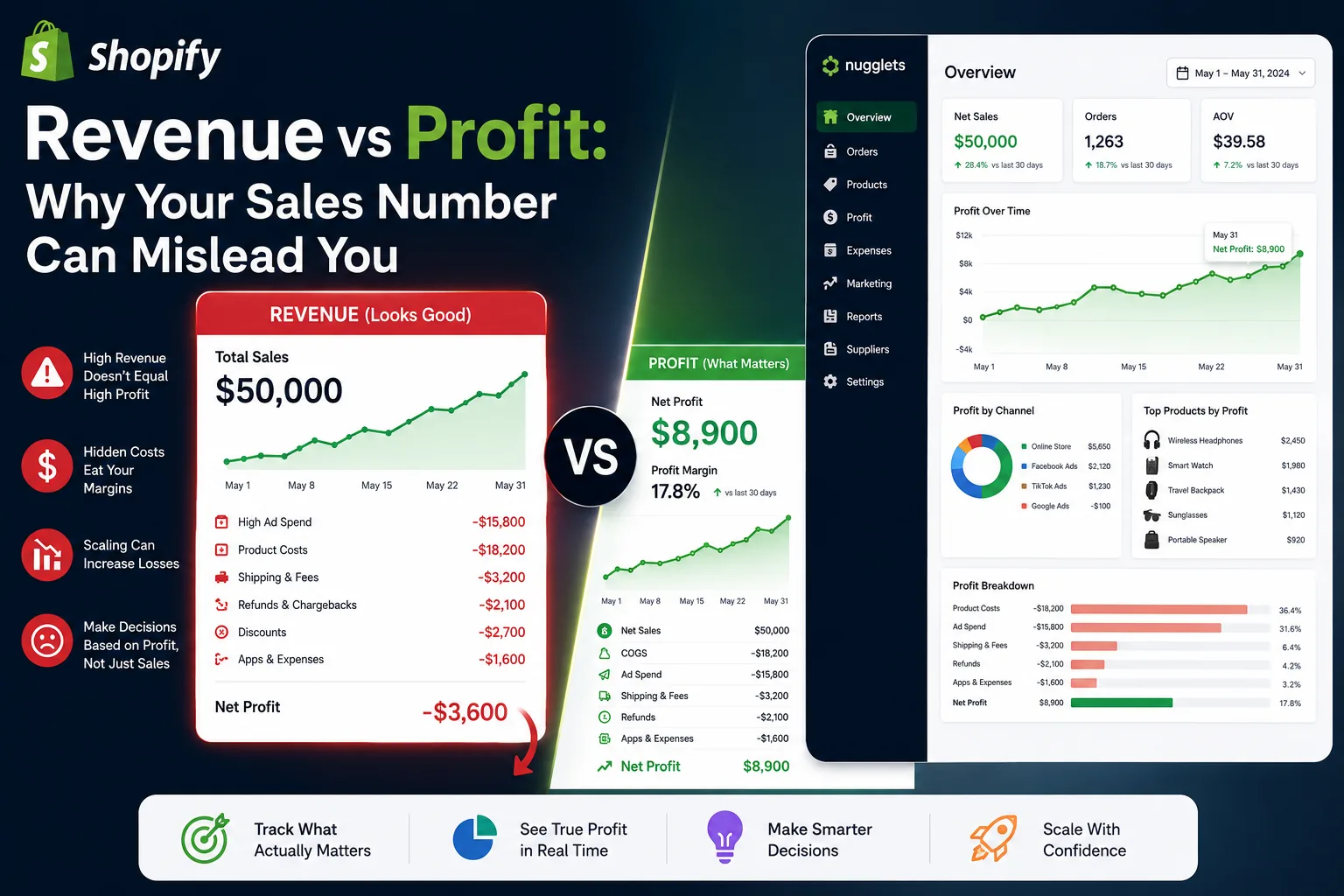
Shopify Revenue vs Profit: Why Your Sales Number Can Mislead You


Comments 0