Understanding Your Real Net Profit in the Profit Tracker
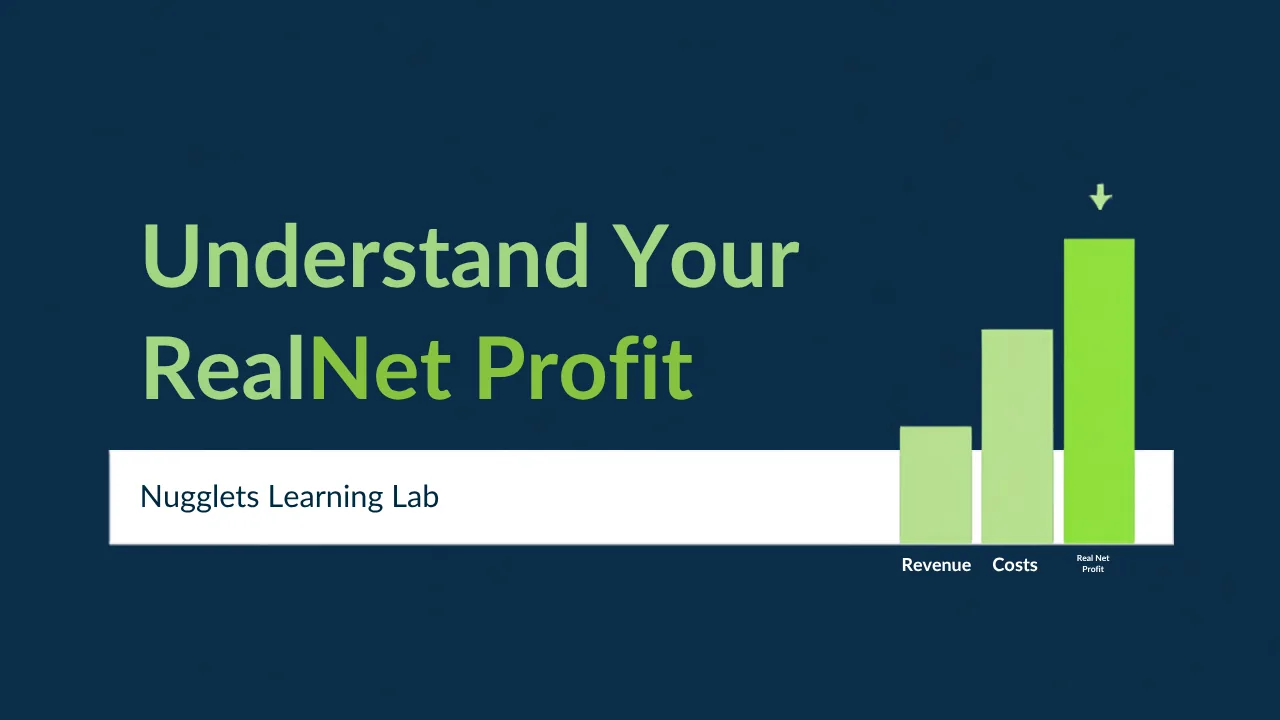
Every store owner eventually asks the same question, am I actually making money? Revenue feels like the answer, but it is not. Revenue is what customers paid you, and by the time you subtract product costs, shipping, platform fees, refunds, taxes, and ad spend, the number that is left can look very different. That number, the money you truly keep, is your Real Net Profit, and it is the heart of the Nugglets command center at nugglets.com/command. This guide explains exactly what it means, how the Profit Tracker calculates it, and how to read every line so your dashboard tells you the truth.
Real Net Profit, defined simply
Real Net Profit is what remains after every cost of a sale is subtracted from what the customer paid. Nugglets is precise about this. It defines your real profit as your money after product costs, shipping, fees, refunds, taxes, and ad spend. That word every matters. Many tools call revenue minus product cost your profit and stop there, which quietly hides shipping, fees, refunds, and the ad spend it took to make the sale. By including all of it, the dashboard gives you a number you can actually bank on, not an optimistic guess.
Why revenue is the most misleading number
On your main dashboard, Revenue sits right at the top, and it feels wonderful to watch it climb. But the dashboard deliberately labels revenue as something that is not treated as profit until costs, refunds, fees, and ad spend are subtracted. That is not a disclaimer, it is the whole lesson. Two stores can both do ten thousand dollars in revenue while one keeps three thousand and the other keeps two hundred. The difference is everything that happens between the sale and the money you keep, which is exactly what the Profit Tracker makes visible.
Where your revenue went
The clearest window into your profit is the panel called Where your revenue went. It takes a period of sales and breaks it into its parts, one line at a time, so you can see precisely where each dollar goes. You will typically see Sales Revenue at the top, then a series of deductions, Product Costs, Shipping Costs, Payment and platform fees, Ad Spend, Refunds, and Other Expenses. At the bottom sits your Real Net Profit. Reading this panel top to bottom is like watching your revenue pass through a series of filters, and it instantly shows you which cost is taking the biggest bite.
The six deductions, explained
Product Costs, or COGS, are what you paid your supplier for the items you sold. For most stores this is the single largest deduction, and it is the one your sales platform cannot tell Nugglets, so you enter it yourself. Shipping Costs are what it actually costs to get the product to the customer, not what you charge them. Payment and platform fees are the cut your sales platform and payment processor take from each sale, which are easy to forget because they are deducted quietly. Ad Spend is what you paid in marketing to win the sale, and it belongs in profit, not in a separate budget you forget about. Refunds are money handed back to customers, which should never keep counting as revenue. And Other Expenses catch everything else, from packaging to samples to software. Miss any one of these, and your profit looks better than it truly is.
The single biggest reason profit looks wrong
If your Real Net Profit ever looks impossibly high, there is almost always one cause, missing product costs. When an order arrives from a connected store, it includes what the customer paid but not what you paid your supplier. Until you enter that cost, the dashboard has to assume it is zero, which inflates your profit. Nugglets is honest about this. On the dashboard, Net Profit and Profit Margin will show a Needs review tag, and the Operations Risk Queue will raise a Missing product cost flag on any order where revenue exists but cost is still zero. The fix is the highest-value thing a beginner can do, add your product costs using the Add Product Cost quick action. The moment you do, your profit becomes real.
Cost snapshots keep your history honest
One thoughtful detail in the Profit Tracker is how it handles changing costs. Suppliers raise and lower prices over time, and if your dashboard simply used today's cost for every past order, your historical profit would shift every time a price changed. Instead, Nugglets saves cost snapshots, so each order keeps using the cost that was true at the time it happened. This means last month's profit stays stable and trustworthy even when this month's supplier price is different. It is a small feature that makes your reports far more reliable.
Reading your Profit Margin
Right next to your profit, the dashboard shows your Profit Margin, the percentage of revenue you actually keep. This is the number professionals watch most, because it tells you how much cushion you have. A healthy margin means you can absorb a bad day, a price increase, or a rise in ad costs without falling into the red. A razor-thin margin means a single wave of refunds could wipe you out. Beginners tend to obsess over revenue, but making margin a number you check just as often is one of the fastest ways to think like a seasoned operator.
The Profit Tracker page
For a deeper look, open the Profit Tracker from your dashboard. Where the dashboard tiles give you a quick pulse, the Profit Tracker lets you dig in, review the full breakdown, and add costs or expenses that belong in the picture. If you have a one-off cost that is not tied to a product, such as a subscription or a batch of packaging, use Add Expense to log it so it is reflected in your real profit. The goal is simple, make sure everything you actually spent to run your store is captured, so the profit figure is complete rather than optimistic.
Trust the Data Health labels
Before you make a big decision based on your profit, glance at the Data Health panel. It tells you how much to trust each number. A figure tagged Needs review is missing something important, usually costs or a connection, so treat it with caution. Manual only means the number reflects just what you entered by hand. Available means the data is present and being used correctly. The rule is straightforward, do not scale ad spend or reorder inventory while your key numbers still say Needs review. Clear the flags first, then trust the profit figure. The dashboard is essentially telling you when your data is ready to be believed.
Turning the number into decisions
Once your Real Net Profit is accurate, it becomes a decision-making tool rather than a vanity metric. You can look at your Top Products ranked by real profit, not revenue, and double down on the ones that actually make you money. You can spot a product that sells well but leaves you only a dollar or two, and decide to raise its price or renegotiate its cost. You can see whether the products you are boosting with ads are still profitable after that ad spend. None of these decisions are possible from revenue alone, they only become clear when the profit number tells the truth.
Common questions
Why is my profit zero even though I have sales? This usually means costs have not been entered yet, so the dashboard cannot complete the calculation, or a store is not connected. Add product costs and the number comes to life.
Does Real Net Profit include ad spend? Yes, when you log it. Ad spend is part of the cost of making a sale, so add it with the Add Ad Spend action to keep your profit honest.
What is the difference between margin and profit? Profit is the dollar amount you keep. Margin is that amount as a percentage of revenue. Watching both gives you the full story, one tells you how much, the other tells you how efficiently.
Your next steps
Understanding Real Net Profit is the mindset shift that changes how you run your store. Instead of celebrating revenue and hoping the bank balance follows, you watch the one number that reflects what you actually keep. To get there, make sure every product has an accurate cost, log your ad spend and expenses, and clear the Needs review flags. Then open the Profit Tracker at nugglets.com/command and read your breakdown from top to bottom. Once you can see exactly where your revenue goes, you will make calmer, smarter decisions for the entire life of your business.
Keep exploring the Nugglets Learning Lab
Need the product view?
Open the live demo to see these workflows inside the Nugglets dashboard.
Open live demoRelated docs
Finding Winning Products with Product Research and Market Watch
Setting Up Alerts That Watch Your Store in /command