Avoid TikTok Shop Fee Mistakes: Tracking Real Profit in /command
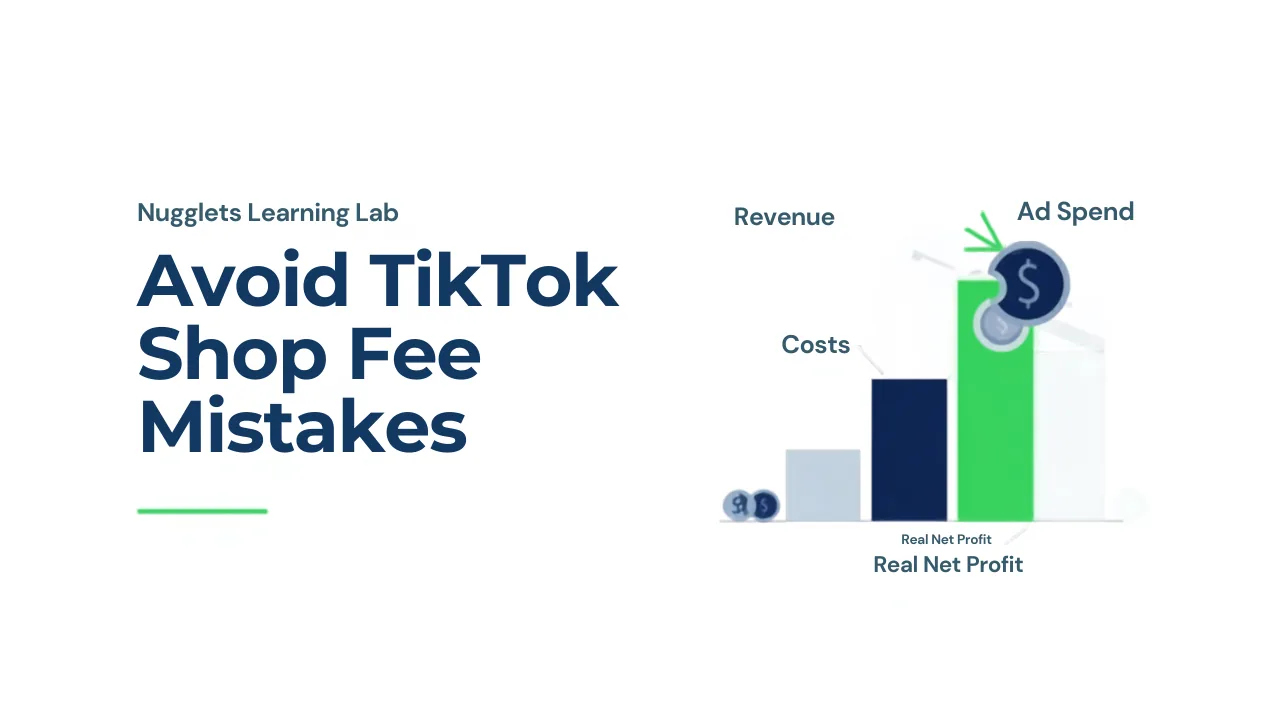
Here is a painful truth that catches almost every new TikTok Shop seller off guard: you can have a screen full of sales and still be losing money. Revenue is exciting, but revenue is not profit. Between your product cost, shipping, TikTok’s fees, refunds, and ad spend, a sale that looks like a $30 win can quietly become a $2 loss. This Learning Lab is about making sure that never happens to you by accident. We will walk through the fee and cost mistakes that eat TikTok Shop margins, and how your Nugglets command center at nugglets.com/command turns a confusing pile of numbers into one honest figure: your real net profit.
Revenue is a trap if you stop there
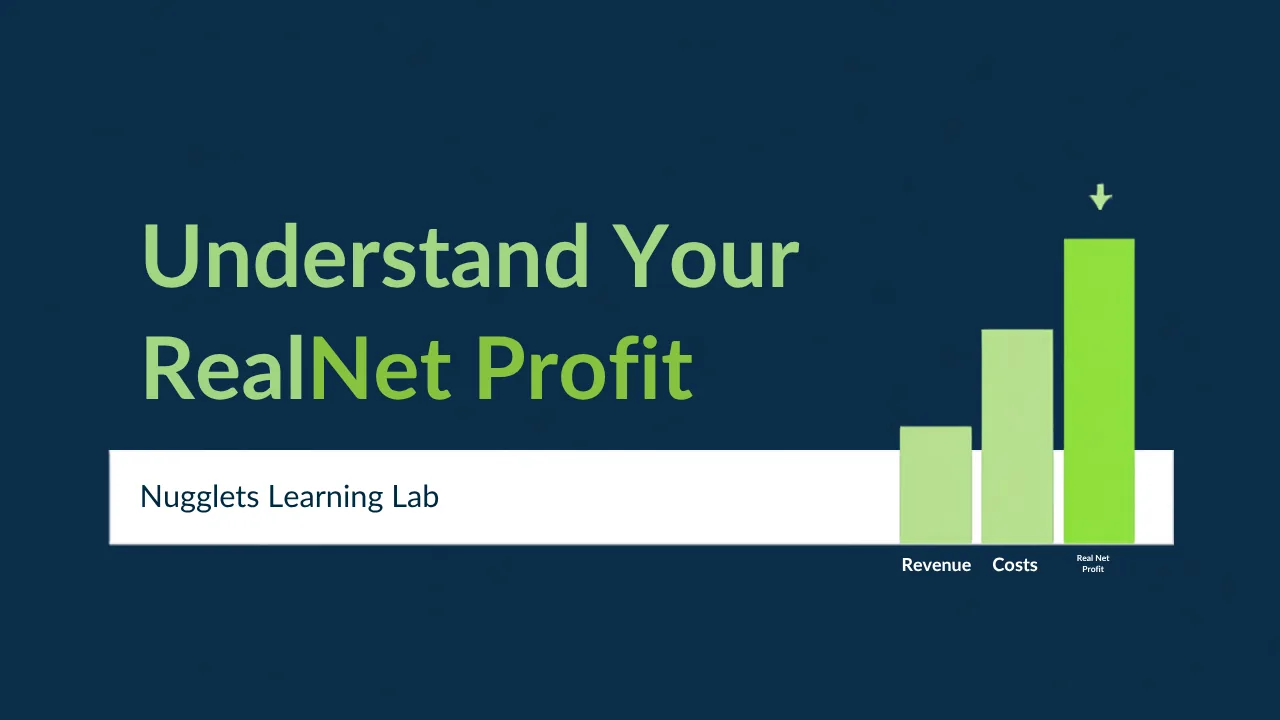
When your dashboard shows Revenue, that is the total your customers paid you. It feels great, but it is the most misleading number in ecommerce. Your command center is deliberate about this. Right on the dashboard, Revenue is labeled as something that is “not treated as profit until costs, refunds, fees, and ad spend are subtracted.” That is not a disclaimer, it is the whole lesson. The number that actually matters is Real Net Profit: what is left after everything is taken out. Nugglets defines it clearly as your money after product costs, shipping, fees, refunds, taxes, and ad spend. Train yourself to look at that figure, not revenue, and you are already ahead of most beginners.
The six things that eat your margin
On your dashboard there is a panel called Where your revenue went. It is worth understanding every line, because each one is a place where profit can quietly leak:
- Product Costs (COGS), what you paid your supplier for the item. The single biggest number for most sellers, and the one TikTok cannot tell Nugglets automatically.
- Shipping Costs, what it costs to get the product to the customer.
- Payment / platform fees, the cut TikTok and payment processors take from each sale.
- Ad Spend, what you paid to get the sale in the first place.
- Refunds, money handed back to customers, which should never keep counting as revenue.
- Other Expenses, anything else: samples, tools, packaging, subscriptions.
Add all of those up and subtract them from revenue, and you get your real net profit. Miss even one, and your profit looks better than it truly is, which is exactly how sellers “grow” themselves out of business.
Mistake #1: Never entering your product costs
This is the big one. When TikTok sends an order to Nugglets, it includes what the customer paid but not what you paid your supplier. So until you enter it, your product cost is zero, which makes your profit look enormous and completely fake. Your command center is honest about this. On the dashboard, Net Profit and Profit Margin will show a “Needs review” tag, and the Operations Risk Queue will raise a “Missing product cost” flag on any order where revenue exists but cost is still zero, with a plain instruction: add COGS to avoid overstated profit.
The fix is simple and it is the highest-value thing a beginner can do. Add your product costs. You can do it from the Quick Actions panel (“Add Product Cost”) or by opening a product and entering what you pay. Nugglets even saves cost snapshots, so your historical orders keep using the cost that was true at the time, meaning last month’s profit does not silently change when your supplier raises prices next month. Enter your costs, and that scary fake-huge profit becomes a real, trustworthy number.
Mistake #2: Forgetting TikTok’s fees
TikTok Shop takes a commission on your sales, and payment processing takes a slice too. New sellers routinely forget these because they are deducted quietly, you never write a check for them, so they are easy to ignore. But on thin-margin products, platform fees can be the difference between profit and loss. The habit to build is treating fees as a real cost, every time. Your command center gives fees their own line in the profit breakdown precisely so they are never invisible. When you reconcile your numbers, make sure the fees line reflects what TikTok actually took.
Mistake #3: Treating ad spend as separate from profit
If you run TikTok ads or boost videos to drive sales, that money is part of your cost of doing business, not a separate “marketing” budget you get to forget about. A product that sells beautifully but needs $15 of ads to sell a $20 item is not a winner. Your dashboard has an Ad Spend tile and an Expenses & Ad Spend panel for exactly this reason. Until you add your ad costs, Nugglets even tells you plainly that profit cannot be treated as fully reconciled. Use the “Add Ad Spend” quick action, and suddenly your profit reflects the true cost of every sale, including what you paid to make it happen.
Mistake #4: Ignoring refunds
A refunded order is not a sale, it is money that came in and went right back out. If you keep counting refunded orders as revenue, your books lie to you. Your command center tracks refunds as their own line and even shows you a refund rate across your orders. A creeping refund rate is an early warning that something is off, a product-quality issue, a misleading listing, or slow shipping. Watching that number is not just accounting; it is customer-experience insight that helps you fix problems before they grow.
Mistake #5: Trusting the numbers before they are complete
This is where the Data Health panel becomes your best friend. Rather than pretending every number is final, your command center is refreshingly honest about which figures are solid and which still need attention. It uses labels like:
- Needs review, something important is missing (usually costs or fees), so treat this figure with caution.
- Manual only, the number reflects only what has been entered by hand, not a live integration.
- Available, the data is present and being used correctly.
The lesson: do not make big decisions, like scaling ad spend or ordering more inventory, while your key numbers still say “Needs review.” Clear the flags first, then trust the profit figure. The panel literally tells you when your data is ready to be believed.
Mistake #6: Never checking your margin
Two sellers can both do $10,000 in revenue. One keeps $3,000 and one keeps $200. The difference is margin, the percentage of revenue you actually keep. Your dashboard shows Profit Margin as a headline number right next to revenue. Beginners obsess over revenue; professionals watch margin. A healthy margin means you have room to absorb a bad day, a price increase, or a rise in ad costs. A razor-thin margin means one refund wave can wipe you out. Make margin a number you check as often as revenue.
Putting it together: your profit-accuracy routine
Here is a simple sequence to keep your real net profit honest on TikTok Shop:
- Add product costs for everything you sell, so COGS is never zero.
- Enter your ad spend regularly so profit reflects what you paid to get sales.
- Log any other expenses, packaging, tools, samples, as they come up.
- Confirm fees and refunds are reflected so nothing is overstated.
- Clear every “Missing cost” and “Needs review” flag in the risk queue and data health panel.
- Read your Real Net Profit and Margin, and only then decide whether a product is a winner.
Do this and your dashboard stops being a feel-good revenue counter and becomes a truth machine. You will know, product by product, what is making you money and what is quietly bleeding you.
A worked example: the $30 sale that almost lost money
Numbers make this concrete, so let us walk through a realistic TikTok sale. Imagine you sell a phone accessory for $30. Revenue looks great, but here is what your command center helps you actually see:
- Product cost: you paid your supplier $9 for the item.
- Shipping: $4 to get it to the customer.
- Platform & payment fees: roughly $3 taken by TikTok and processing.
- Ad spend: you spent $11 in TikTok ads to win this sale.
Add those up: $9 + $4 + $3 + $11 = $27 in costs. Your real net profit on that “$30 sale” is just $3, a 10% margin, not the 70% you might have imagined from the price tag. Now imagine one in ten of these gets refunded: that single refund wipes out the profit from several good sales. This is not meant to scare you, it is meant to show why entering every cost matters. Without your costs in the dashboard, that same sale would have proudly displayed $30 of “profit,” and you might have scaled it aggressively straight into the red. With your costs in, you see the truth: this product works, but only if you can lower ad spend or product cost to widen that thin margin.
Small leaks sink big ships
The dangerous thing about margin mistakes is that they are rarely dramatic. No single sale ruins you. Instead, a dollar of forgotten fees here, an un-logged ad cost there, and a couple of ignored refunds add up quietly across hundreds of orders until a “profitable” month turns out to have made almost nothing. Your command center fights this by giving every leak a visible line and every gap a flag. The discipline of clearing those flags is really the discipline of plugging small leaks before they sink the ship. Sellers who make peace with this, who treat “boring” cost entry as a core part of the job, are the ones still standing a year later.
Why this matters more on TikTok than anywhere else
TikTok Shop is a volume game. Products go viral, orders flood in, and it is intoxicating to watch revenue spike. But that same speed is what makes fee and cost mistakes so dangerous, you can scale a losing product to hundreds of orders before you realize each sale costs you money. The sellers who survive TikTok’s wild swings are the ones who know their real net profit on every product before they pour fuel on the fire. Your command center exists to give you that clarity in real time, not weeks later when the damage is done.
Where to find each number in your dashboard
Knowing what to track is only useful if you know where it lives. Your command center keeps everything within a click or two. The headline tiles at the top give you Revenue, Real Net Profit, Profit Margin, Orders, Ad Spend, and Average Order Value at a glance. The Where your revenue went panel breaks a period down into its cost lines so you can see exactly which expense is eating your margin. The Data Health panel tells you which figures are solid and which still need review. The Operations Risk Queue surfaces specific orders missing costs, suppliers, or tracking. And the Quick Actions panel gives you one-tap buttons to add product costs, ad spend, and expenses without hunting through menus. Spend five minutes clicking around these areas once, and you will always know where to go when a number looks off.
Pricing for real profit, not just for sales
Once you can see your true costs, a powerful thing becomes possible: pricing on purpose. Many beginners price by copying competitors or by guessing what “feels” right, then wonder why they are always broke despite steady sales. With your costs entered in the command center, you can work backwards from the profit you actually want. Start with your product cost, add shipping, estimate platform fees, factor in the ad spend it typically takes to make a sale, and decide how much margin you need on top. That total is your real floor price, sell below it and you lose money no matter how many units move. This is also how you spot which products deserve a price increase. If a product sells well but leaves you $2, a modest price bump might double your profit with barely any drop in orders. You cannot make these decisions on revenue alone; you can only make them when the dashboard shows real net profit.
A simple cost-entry checklist
To keep your profit numbers trustworthy, make sure each of these has a home in your dashboard for every product you sell:
- Product cost (COGS), entered per product, updated whenever your supplier price changes.
- Shipping cost, what it actually costs to deliver, not what you charge the customer.
- Platform and payment fees, reflected so TikTok’s cut is never invisible.
- Ad spend, logged regularly so profit includes the cost of winning the sale.
- Refunds, tracked so returned money stops counting as revenue.
- Other expenses, packaging, samples, subscriptions, and tools.
Run through this list whenever you add a new product, and your real net profit will stay honest as you grow.
The mindset shift that changes everything
The biggest transformation is not a feature, it is a mindset. Amateur sellers celebrate revenue and get blindsided when the bank account does not match the excitement. Professional sellers feel almost nothing when they see a big revenue number, because they know it is only half the story. Their eyes go straight to margin and real net profit. Making that shift early, while your shop is small and mistakes are cheap, is one of the most valuable things you can do. Your command center is built to nudge you toward that professional mindset every time you open it, putting real net profit front and center and quietly reminding you, through its labels and flags, that revenue is not the same as money kept. Adopt that view now, and you will make calmer, smarter decisions for the entire life of your business.
The bottom line
Revenue tells you that people want what you sell. Real net profit tells you whether you have a business. The gap between them is made of product costs, shipping, fees, refunds, and ad spend, and every one of those has a home in your Nugglets dashboard. Fill them in, watch the “Needs review” flags disappear, and let the command center show you the one number that actually pays your bills.
In the final Learning Lab of this series, we will tie everything together into a simple daily routine, a few minutes each morning that keeps your orders shipped, your tracking clean, your costs current, and your profit honest. Head to nugglets.com/command, add a product cost right now, and watch a fake profit number turn into a real one before your eyes.
Keep exploring the Nugglets Learning Lab
Need the product view?
Open the live demo to see these workflows inside the Nugglets dashboard.
Open live demoRelated docs
Finding Winning Products with Product Research and Market Watch
Setting Up Alerts That Watch Your Store in /command